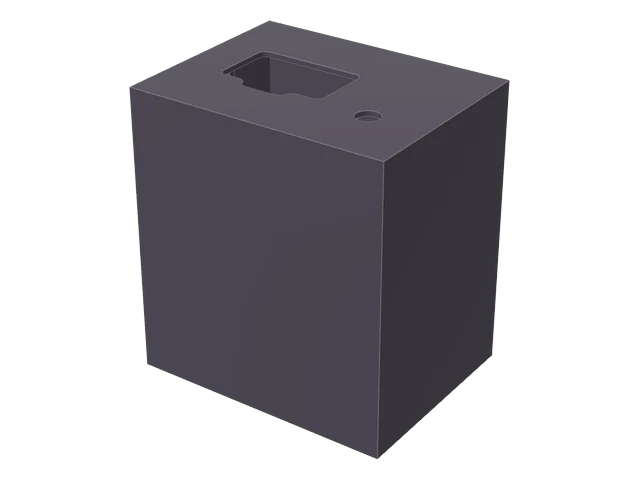

v1OWAN A tall box
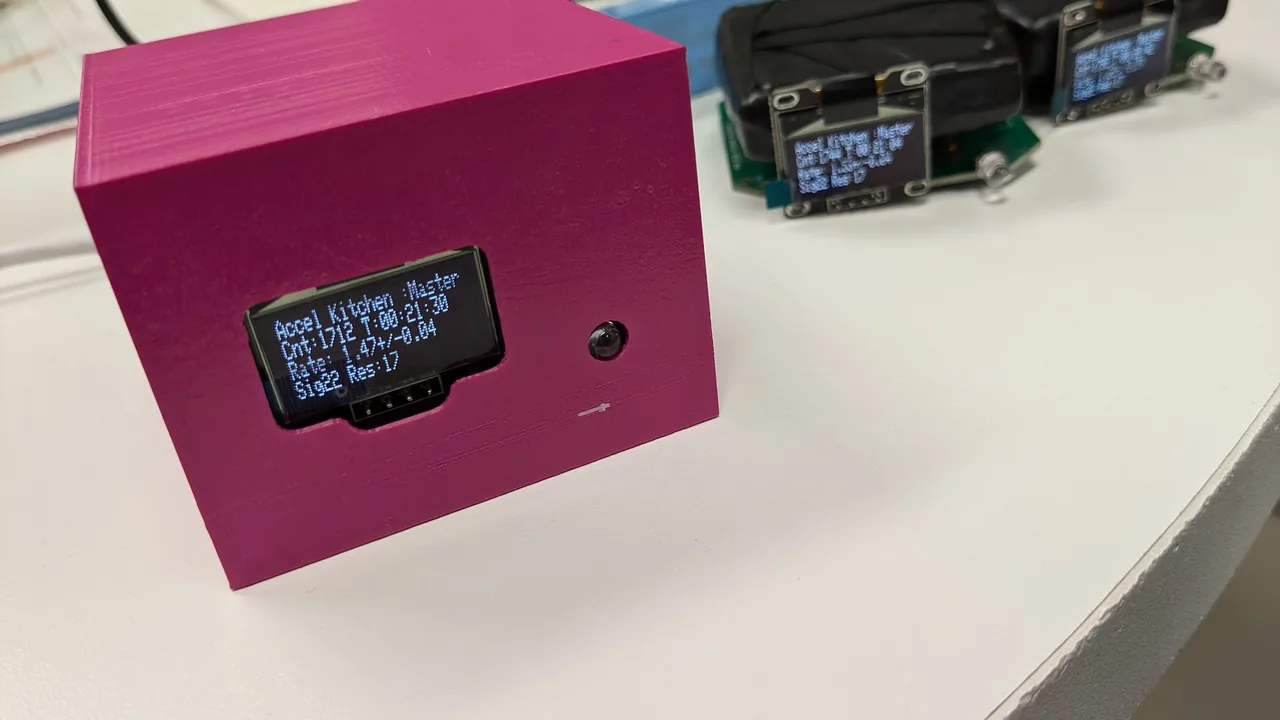
On the top face you will find a small window for the display and a small round hole. The microcontroller is an Arduino Nano and the USB port is Mini-B.
MANUAL
From unboxing to your first measurement, then data analysis, troubleshooting and assembly, all in one place. Pick your model, OWAN (v1) or OHASHI (v2), and the page shows only the steps for it.
In trouble? (09 Troubleshooting)What to tell us when you ask for helpGlossary
On the top face you will find a small window for the display and a small round hole. The microcontroller is an Arduino Nano and the USB port is Mini-B.
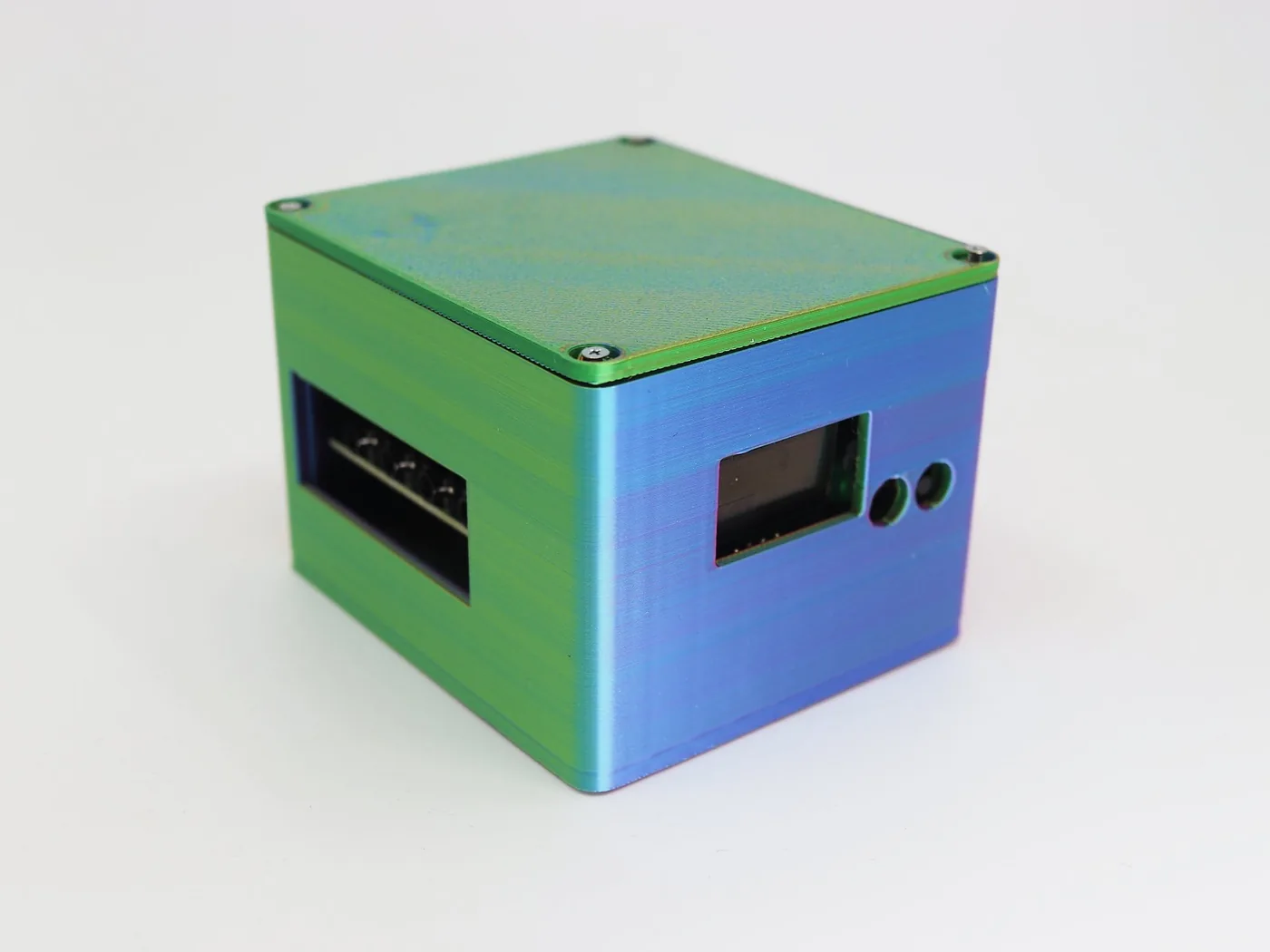

On a side face there is a window for the display and two round holes (for the button and the LED). The microcontroller is an Arduino Nano ESP32 and the USB port is Type-C.
The steps from receiving the detector to your first successful measurement. Follow them in order and see cosmic rays being detected for yourself.
Tell OWAN (v1) from OHASHI (v2). If there is a sticker on top of the box, a bowl on a young-grass green ground is OWAN and chopsticks on an unbleached kraft ground is OHASHI. Without a sticker, go by the shape of the box (see the photos above, or 02 Models and how it works). The "Both / v1 / v2" switch at the top right keeps only the instructions for your model.
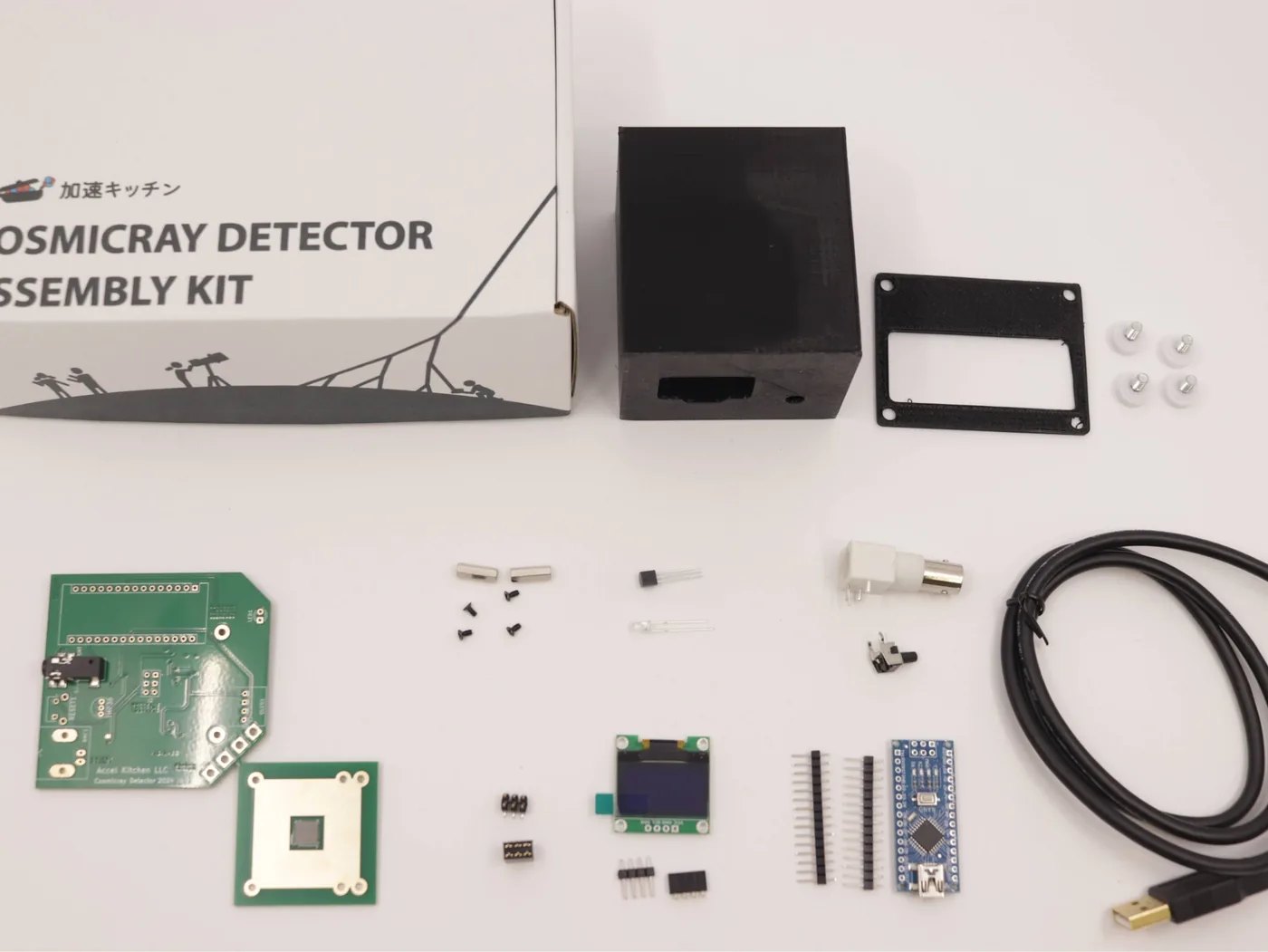
The box contains:
With an assembly kit you also have to bond the scintillator to the SiPM and make it light-tight. See 10 Assembly.
Use Chrome or Edge on the PC (Firefox and Safari do not support USB serial connections).
COM3 or /dev/tty.usbserial-XXXX).These values are a guide. If yours are far off, see 09 Troubleshooting.
| Item | Normal range |
|---|---|
| Count rate | about 0.5–2.0 cnt/s |
| Events in 5 minutes | about 150–600 events |
| v1 ADC distribution | Out of 0–1023, most values are about 20–200, with an occasional large value above 300 |
| v2 ADC distribution | 0–4095. Ambient gamma rays dominate from just above the threshold up to a few hundred, and the cosmic-ray hump appears around 1000 |
If you are inside these ranges, the detector is working properly. You have detected cosmic rays. If you are outside them, use the next table to get an idea of what is wrong.
| Rate | Verdict | What to do |
|---|---|---|
| 0.5–2.0 cnt/s | Normal | Go ahead and measure |
| 0.3–0.5, 2.0–3.0 cnt/s | Within the acceptable range | Go ahead and measure. If you are concerned, check the light-shielding and the connector |
| 0.1–0.3, 3–10 cnt/s | Unclear | Restart the detector and measure again. If nothing changes, check the light-shielding (if the rate is high) or the connector (if it is low) |
| Below 0.1 cnt/s | Too low | The threshold is too high, or a connector has come loose (09 Troubleshooting) |
| Above 10 cnt/s | Too high | Poor light-shielding is very likely (09 Troubleshooting) |
This guide was checked on the v1. The v2 sets its threshold a little differently, so it may be off (the v2 values will be reviewed once they have been measured).
The CsI scintillator version (a 1 cm cube) has a much smaller area, so its rate is lower: about one cosmic ray per minute. This table does not apply to it.
Once the first measurement works, get the big picture of the research activity. (These pages are in Japanese.)
If anything is unclear, ask on Discord at any time. There is also a weekly office hour.
This is a radiation detector that can count gamma rays, beta rays, cosmic-ray muons and more.
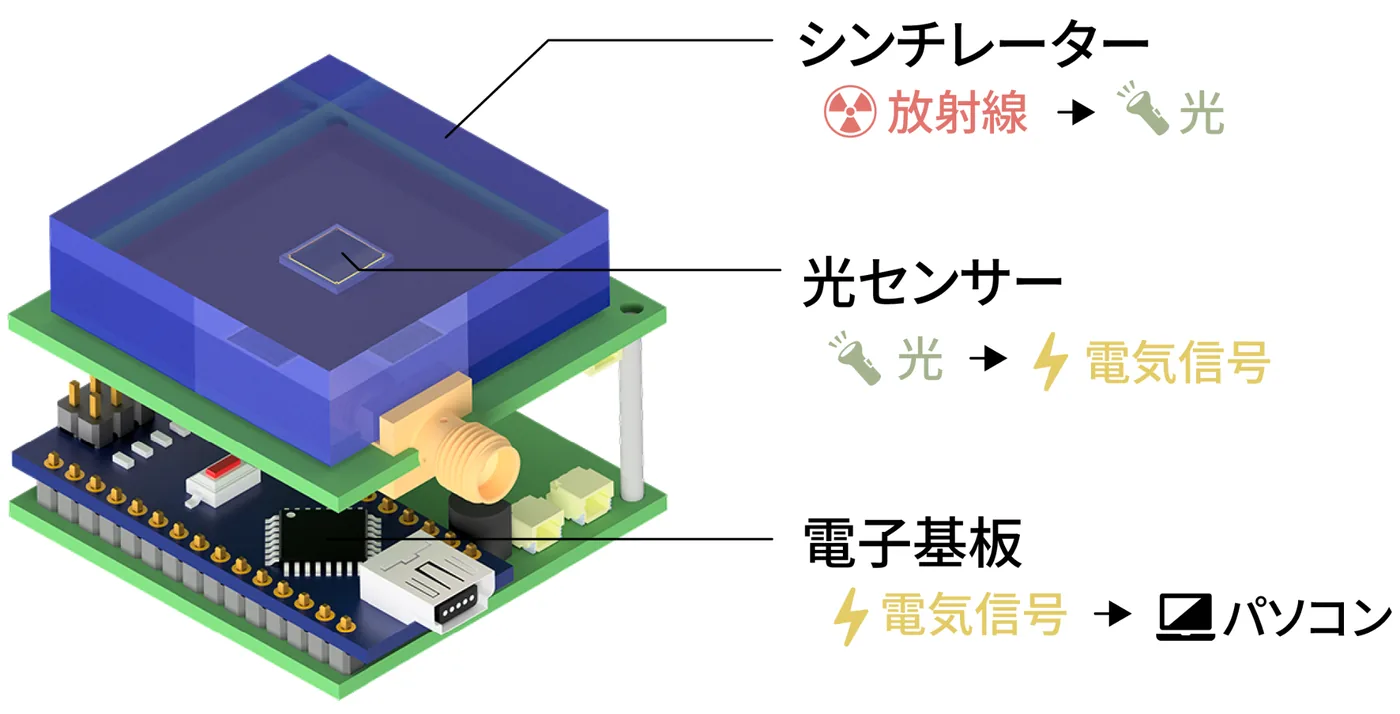
When a particle passes through the scintillator, the scintillator glows faintly. A SiPM (silicon photomultiplier) turns that light into an electrical signal, and the circuit on the board amplifies it. The microcontroller reads the height of the signal (the ADC value), shows it on the display and sends it to the PC. A larger ADC value means the particle deposited more energy in the scintillator.
If you would like to learn about cosmic rays and detectors from the basics first, read the course material "The basics of cosmic rays and detectors" (in Japanese).
Between the particle and the number, the shape of the signal changes twice. The amplifier turns the SiPM's tiny signal into a larger, short pulse, and then the peak hold keeps the height of that pulse for a short while. While it is held, the microcontroller reads the height. That is the ADC value.
The "trigger" is the moment the peak-hold output rises above the threshold. The ADC is read next, and finally the circuit is reset to be ready for the next pulse. How the reset works differs by model. v1 simply waits until the signal has decayed below Res.v2 forces a reset with a short pulse (about 20 µs) from the microcontroller's D8 pin.
v1 is called OWAN (a rice bowl) and v2 is called OHASHI (chopsticks). The sticker that goes on top of the box draws that tool inside a round crest, with particles falling toward it. If there is a sticker, its picture and ground color tell you the model.
v1 A tall box
Online Watcher of Ambient Natural radiation
A bowl on a young-grass green ground. The steaming bowl catches the particles as they fall.
v2 A nearly cubic box
Online Hands-on Analyzer of Scintillation Hits, Individually
Chopsticks on an unbleached kraft ground. The chopsticks pick up a single falling particle.
The drawing and letters are in sumi (ink black); the initials and the seal at lower right are in shu (vermilion). The Accel Kitchen logo runs along the bottom edge. The sticker goes on top of the box (the lid).
| Item | v1 | v2 |
|---|---|---|
| Name | OWAN (bowl) | OHASHI (chopsticks) |
| Sticker | A bowl. Young-grass green ground | Chopsticks. Unbleached kraft ground |
| Box shape | Tall. A display window and a small round hole on the top face | Nearly cubic. A display window and two round holes on a side face |
| Microcontroller | Arduino Nano (ATmega328P) | Arduino Nano ESP32 (ESP32-S3) |
| USB port | Mini-B | Type-C |
| USB driver | CH341 driver needed on Windows only | Not needed |
| Signal resolution (ADC) | 10 bit (0–1023) | 12 bit (0–4095) |
| Environment sensor | Temperature (TMP36) | Temperature, humidity and pressure (BME280) |
| Communication | USB serial (9600 bps) | USB serial (9600 bps) and Bluetooth LE |
| Recording on the unit | None (saved on the PC) | Can log to a microSD card automatically |
| Coincidence | Two units. One cable links a Master and a Slave | 1 OUT and 3 IN. Reads up to 3 external detectors at once |
| Display and alerts | OLED and LED | OLED, LED and buzzer (a vibration motor can be added) |
| Time unit | milliseconds (ms) | microseconds (µs) |
| Measurement app | …/cosmicray-monitor/v1 | …/cosmicray-monitor/ |
Do not use the v1 app or v1 sketch with a v2 board. The columns of the output shift by one and cannot be read correctly.
There are also units in which a v1 board has an Arduino Nano ESP32 swapped in. Their screen and wiring are v1's, and their communication is close to v2's. These units run a different sketch from the v1's. Their ADC is 12 bit (0–4095), their output has 7 columns including a Mode column, and they differ from the v1 in how the threshold is chosen, how settings are saved, the length of a command (up to 47 characters) and how coincidence works. Do not apply this manual's v1 numbers and steps to these units as they are (08 Firmware).
 1
2
3
4
5
6
7
1
2
3
4
5
6
7
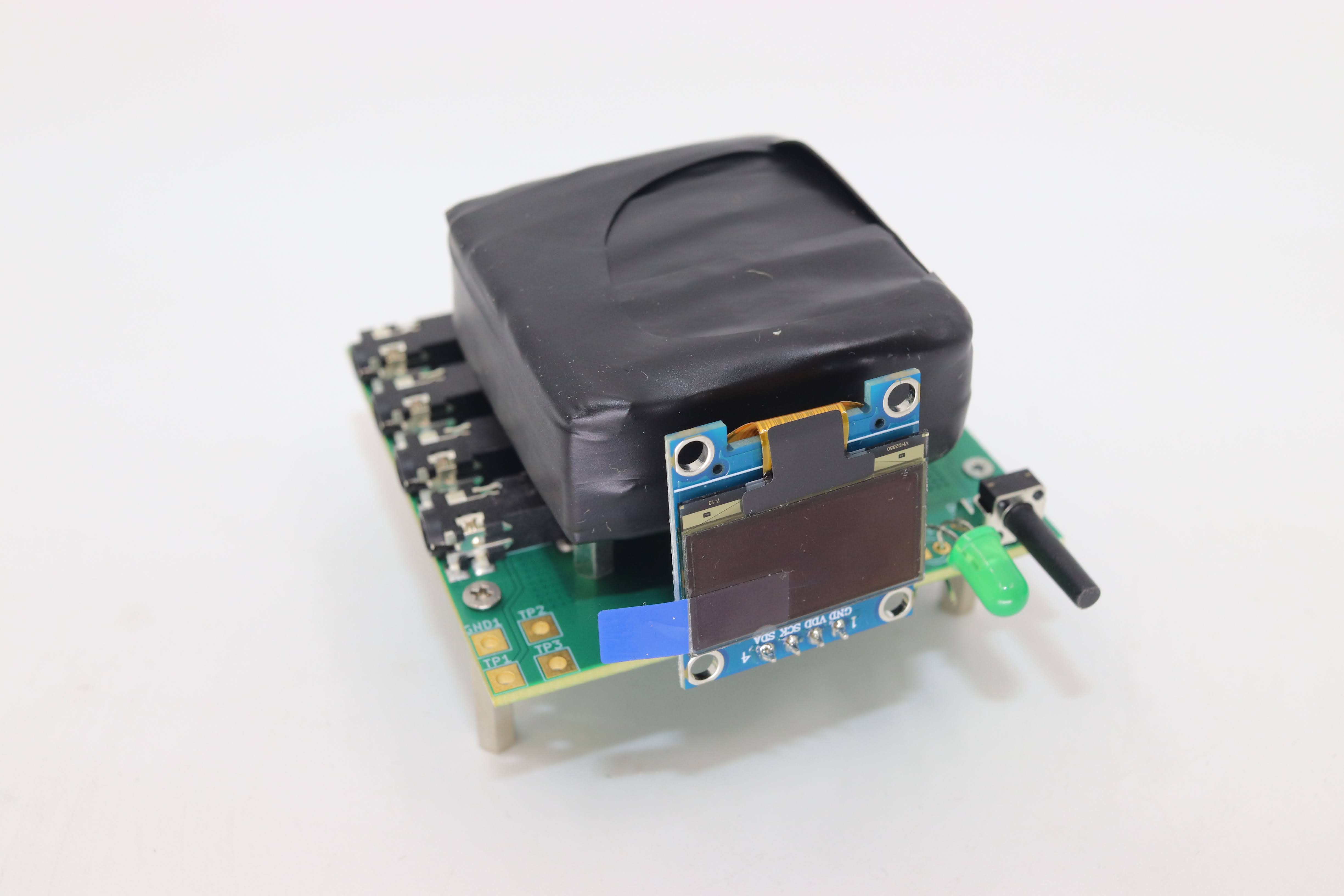
The front view (a photo of a prototype).
 1
2
3
4
5
1
2
3
4
5
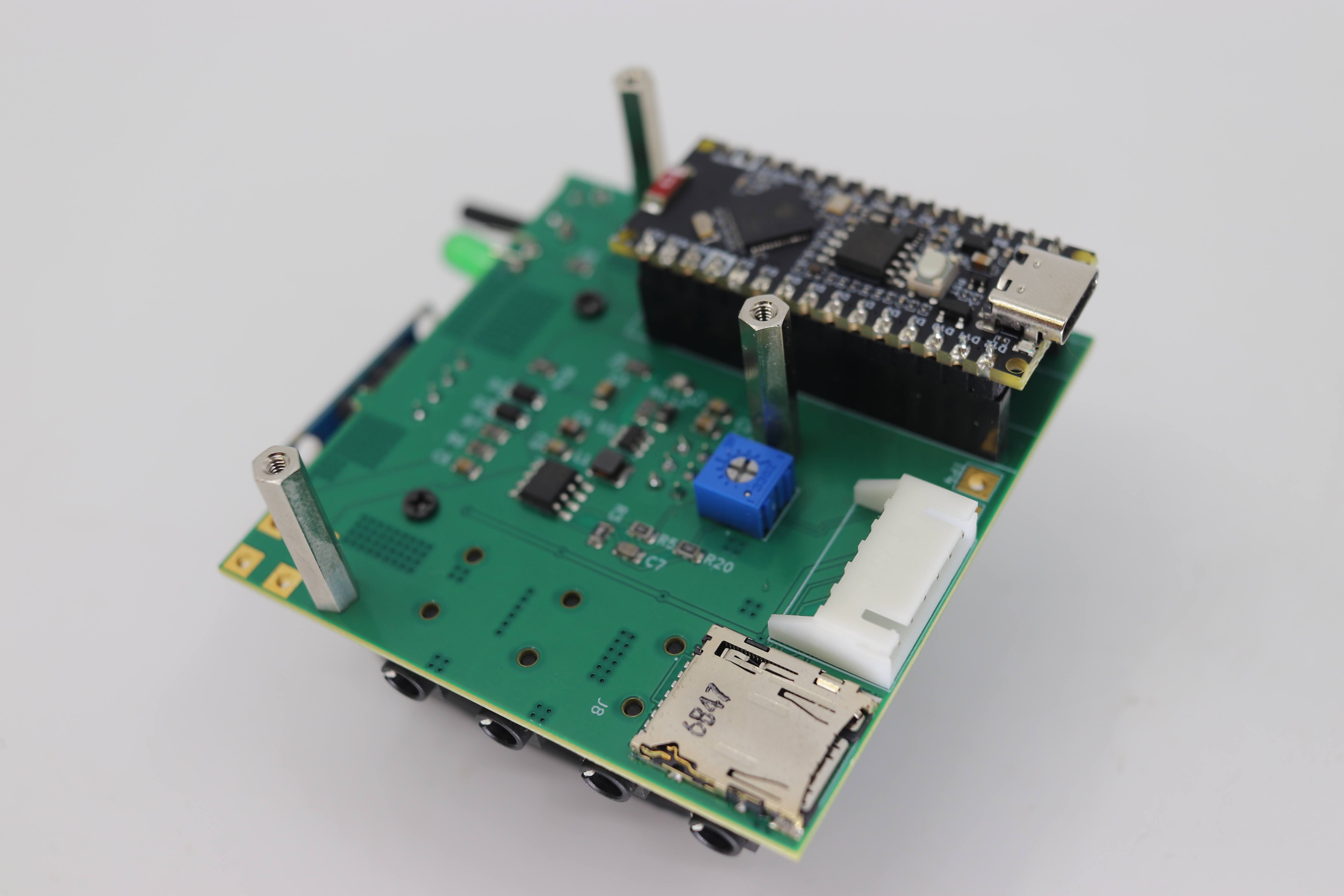
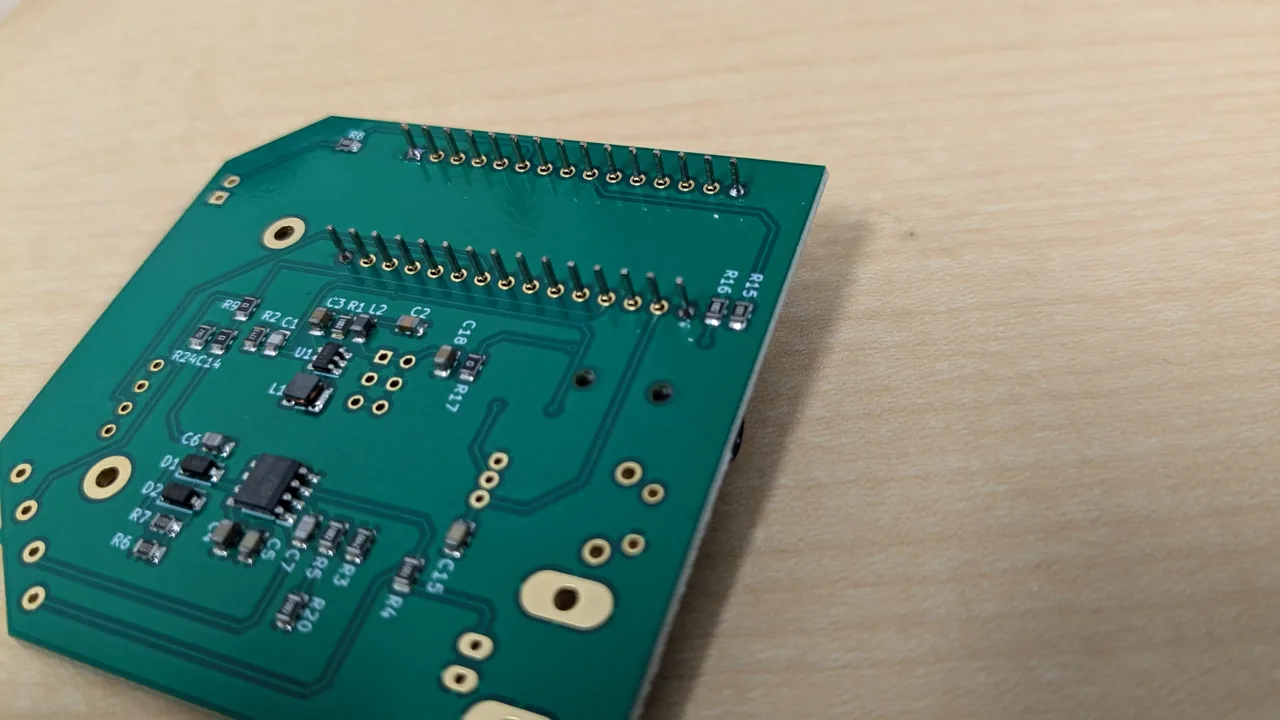
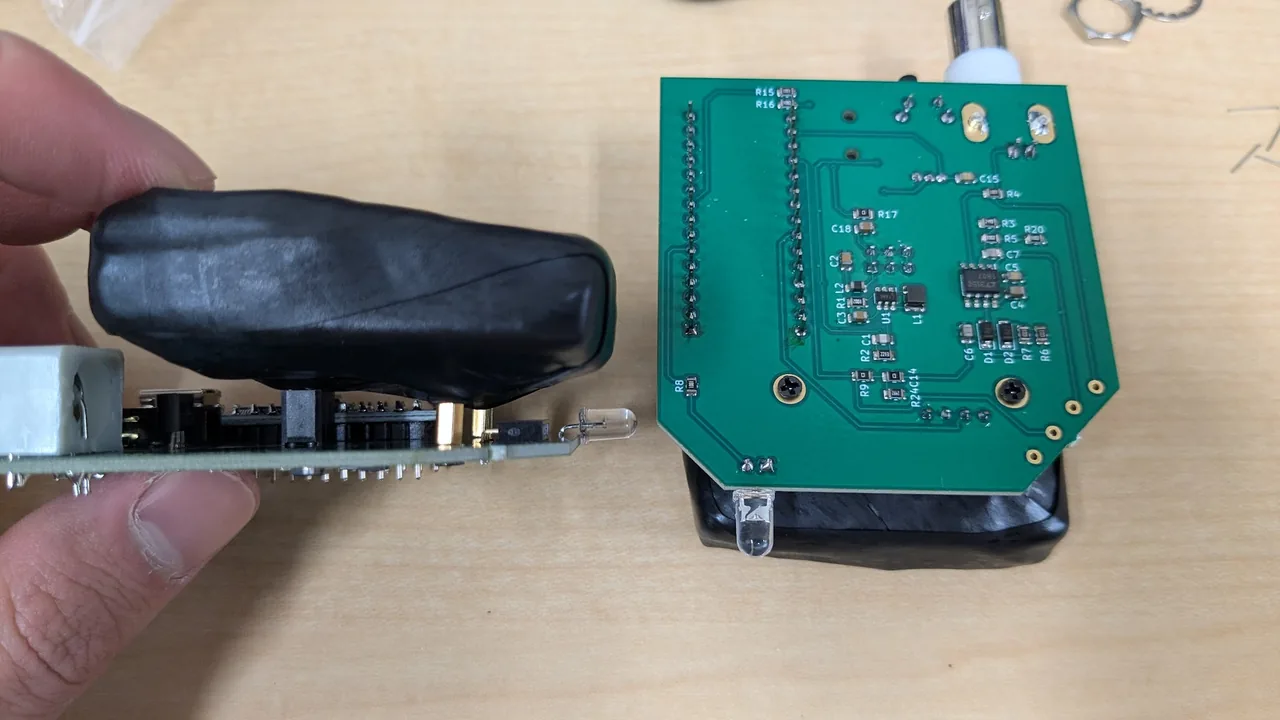
The back of the board (with the scintillator removed).
The vibration motor is a part you add later. If you connect it directly to the microcontroller pin (A7), the current is too large and damages the microcontroller. Connect A7 → 1 kΩ → an NPN transistor (such as a 2N3904 or S8050) or an N-channel MOSFET (2N7002), and put a diode (1N4148) in parallel with the motor. Do not connect it to D13 (it is shared with the microSD signal, and the log gets corrupted). Noise from the motor can also cause false counts.
Do not touch the board directly while measuring. Do not power the detector in a bright place with the light-shielding tape removed. If outside light gets in, it cannot measure correctly.
| Item | Details |
|---|---|
| Scintillator | Plastic, 50 × 50 × 10 mm ("5 × 5 × 1 cm"), is standard. A CsI version, a 1 cm cube, is also available |
| v2 Light sensor | SiPM (onsemi MICROFC-60035, 6 mm square), mounted on a 40 mm square board |
| v2 SiPM voltage | About 29 V (stepped up on the board from the 5 V of the USB) |
| Signal size (ADC) | v1: 10 bit (0–1023)v2: 12 bit (0–4095) |
| Time unit | v1: millisecondsv2: microseconds |
| Communication | USB serial (9600 bps). Bluetooth LE can also be used |
| Data recording | v1: saved on the PCv2: saved on the PC, or logged to a microSD card (FAT32) |
| Power | Powered from USB (5 V) |
Connect the USB cable so that the PC can find the detector.
The v1 talks to the PC through a USB-to-serial converter (a CH341-type chip), and some operating systems need a driver for it. The v2's Arduino Nano ESP32 speaks USB directly, so no driver is needed.
| OS | v1 | v2 |
|---|---|---|
| Windows | The CH341 driver must be installed | Not needed |
| macOS | Usually not needed. If the detector is not recognized, install the CH341 driver for macOS | Not needed |
| Linux | Not needed (it is in the kernel) | Not needed |
| Chromebook | Not needed (Chrome's Web Serial API works as it is) | |
CH341SER.zip and choose "Extract All". Note where the files are extracted to.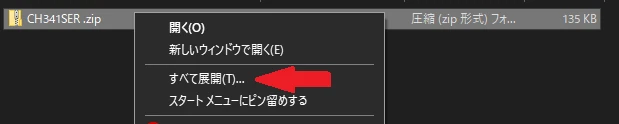
SETUP.EXE in the CH341SER folder that was created.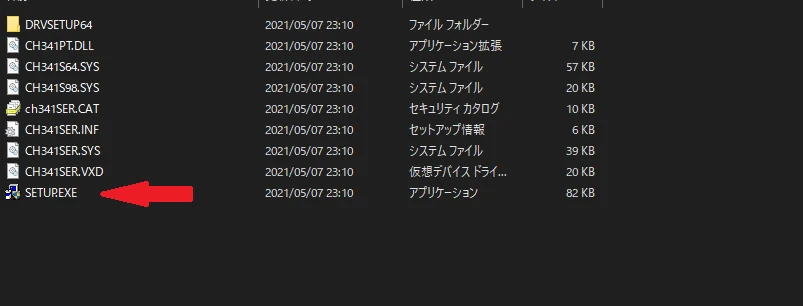
SETUP.EXE (the red arrow) in the folder.INSTALL in the window that appears, and the installation starts.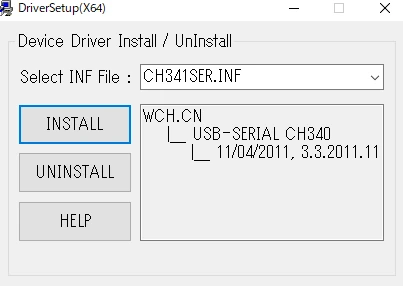
INSTALL in this window.UNINSTALL first and then INSTALL again.After connecting the detector over USB, run this command in Terminal.
ls /dev/tty.*/dev/tty.usbserial-XXXX or /dev/tty.wchusbserial-XXXX appears, the detector is recognized. If not, install the CH341 driver for macOS./dev/cu.usbmodem… appears, the detector is recognized.After connecting the detector, run this command in a terminal.
dmesg | grep ttyIf something like /dev/ttyUSB0 /dev/ttyACM0 appears, the detector is recognized. If the web app cannot open the port, add your user to the dialout group.
sudo usermod -a -G dialout $USERThe change takes effect after you log out and log in again.
Connect the detector to the PC with the supplied USB cable. The display on the detector shows information like this. Units without a display show nothing.
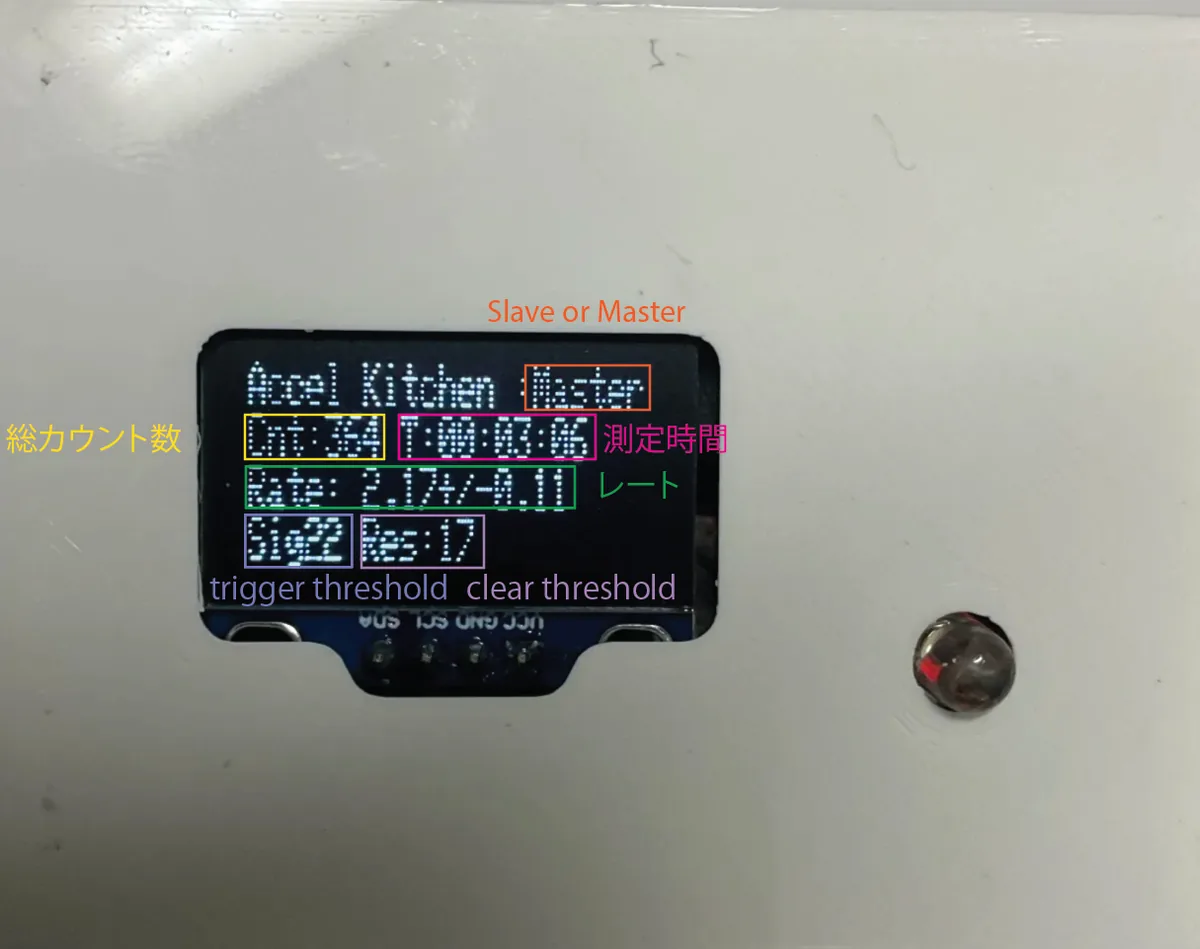
| Display | Meaning |
|---|---|
1Accel Kitchen :Master / :Slave | The role when two units are used for coincidence measurement. A single unit shows :Master (05 Coincidence) |
2Cnt: | The total number of events detected since power-on |
3T: | The time elapsed since power-on (hours:minutes:seconds) |
4Rate: | The measured rate (per second) and its statistical uncertainty (±). It is divided by the time with the dead time (the time during which it could not count) subtracted |
5Sig | The threshold that starts a trigger (an ADC value). A signal above it is counted as an event |
5Res | The threshold for starting the next measurement. Once the ADC value falls below it, the detector waits for the next event |
| Display | Meaning |
|---|---|
1Cnt: | The total number of events detected since power-on |
2T: | The time elapsed since power-on (hours:minutes:seconds) |
3Rate: | The measured rate (per second) and its statistical uncertainty (±). It is divided by the time with the dead time (the time during which it could not count) subtracted |
4Thr: | The signal threshold (0–4095). A signal above it is counted as an event |
5Duty: | The PWM value (0–255) that sets the comparator threshold. It is used in Digital / Dual mode |
| 6Temperature, humidity, pressure | Values from the BME280, updated every 2 seconds. They do not appear if the sensor is not found |
The threshold is set automatically every time you power on. The v1 measures the noise on A0 for about 0.1 second right after startup and adds 20 (Sig) and 15 (Res) to the minimum. The v2 measures the noise on A0 for about 1 second (100 samples) right after startup and adds a margin (initially 50) to the maximum.
Power it on in its normal, assembled (light-tight) state. Do not move or touch the detector during the first second or so after startup (about 0.1 second on the v1), while it is measuring the noise. If outside light gets in at startup, or the noise is large, the threshold ends up too high and nothing is detected (09 Troubleshooting).
Use the web app to turn the detector's data into graphs and save it on the PC.
Open the web app in Chrome or Edge on a PC (a Chromium-based browser). Firefox and Safari do not support the USB connection (the Web Serial API).
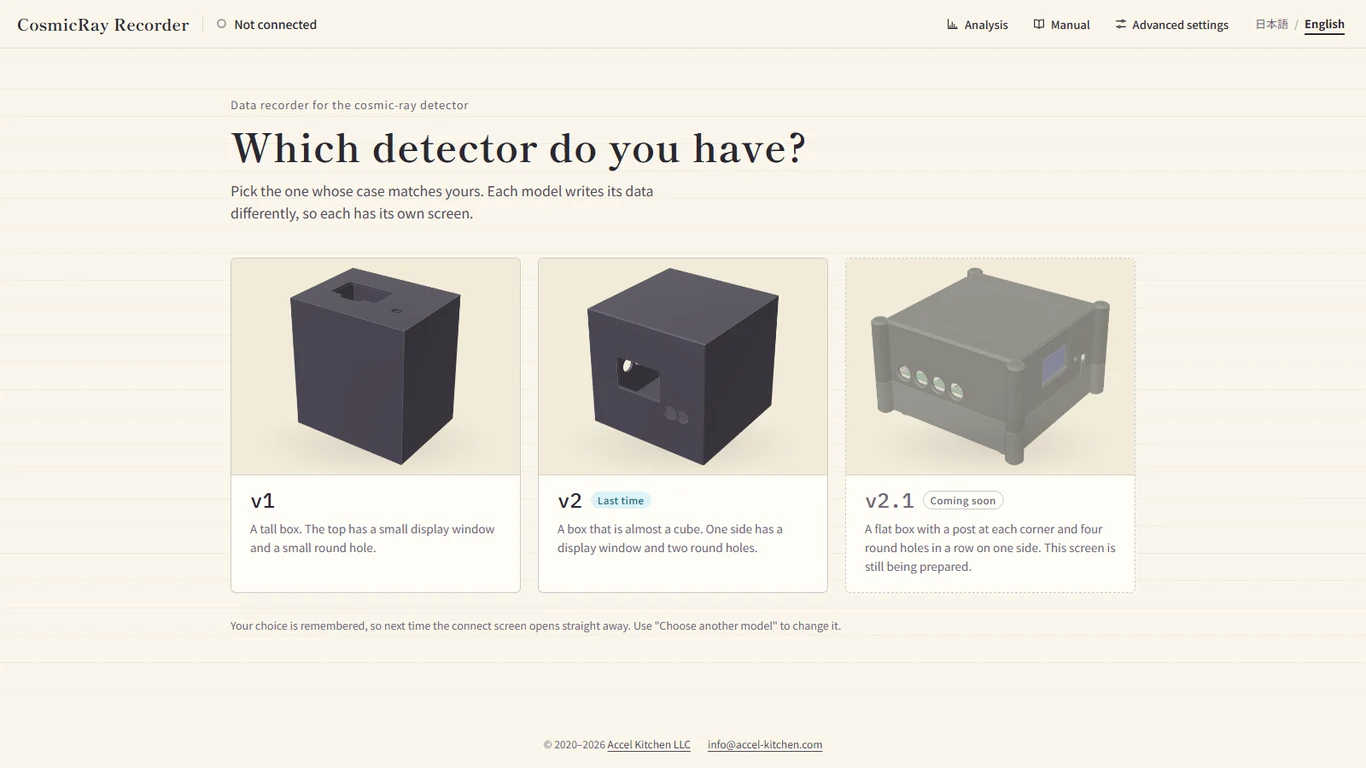
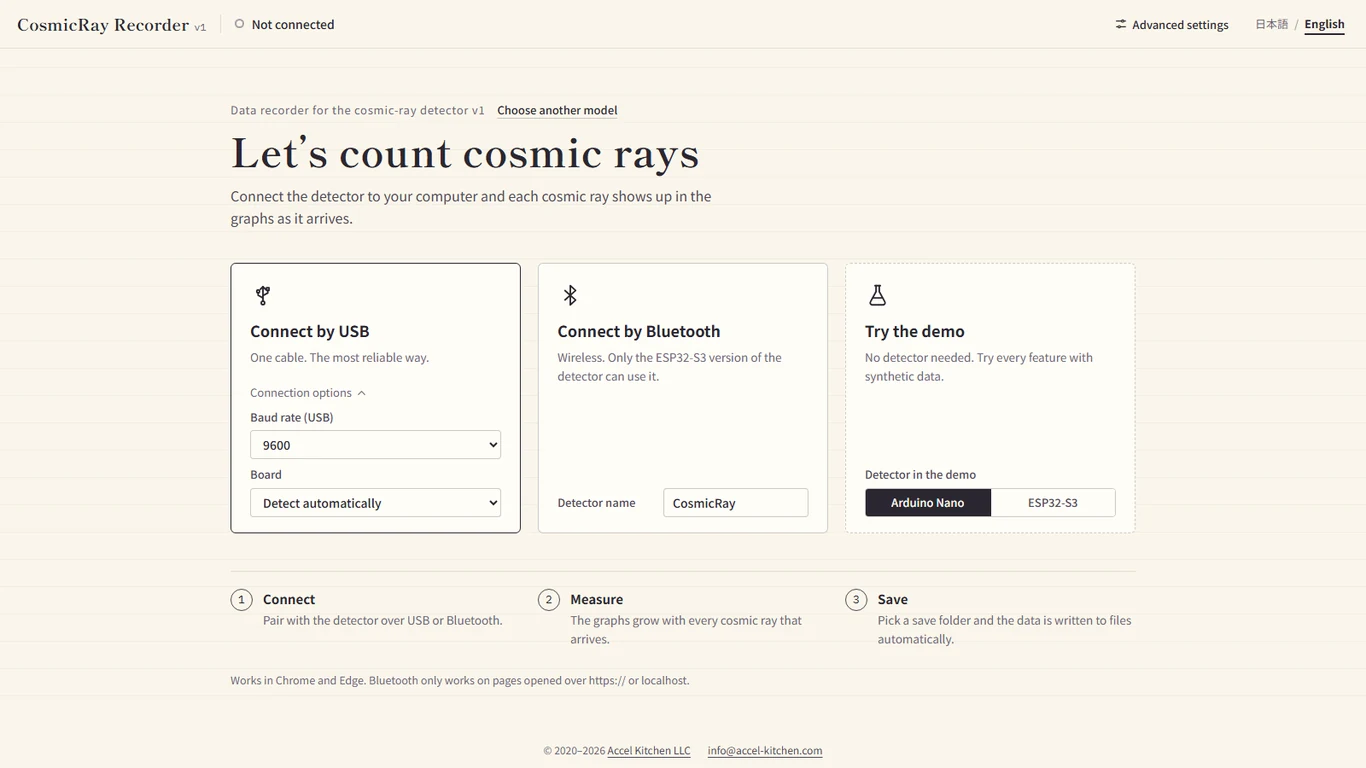
Open https://accel-kitchen.com/app/cosmicray-monitor/. The first screen asks which model you have. Compare your detector's box with the pictures and choose v2. The browser remembers your choice, so next time you start at the connection screen. The app can show English (switch at the top right).
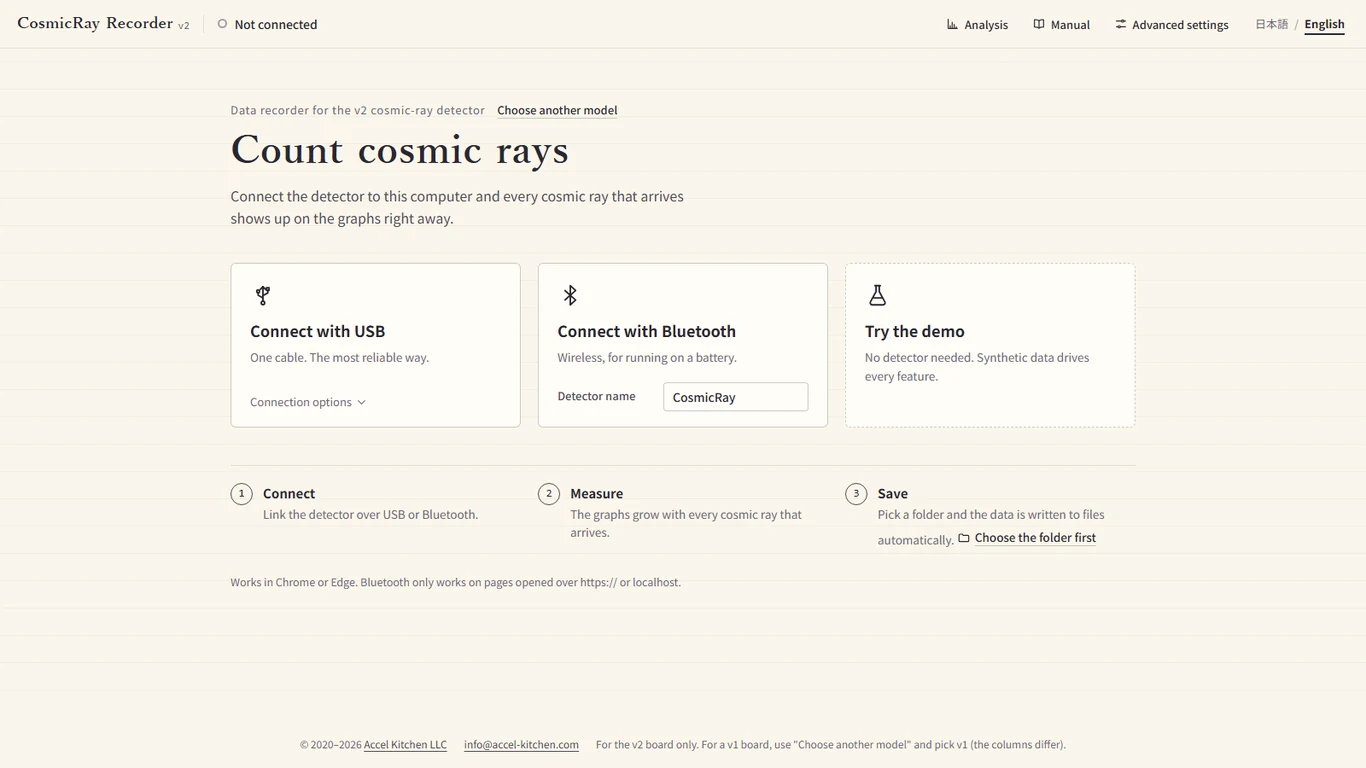
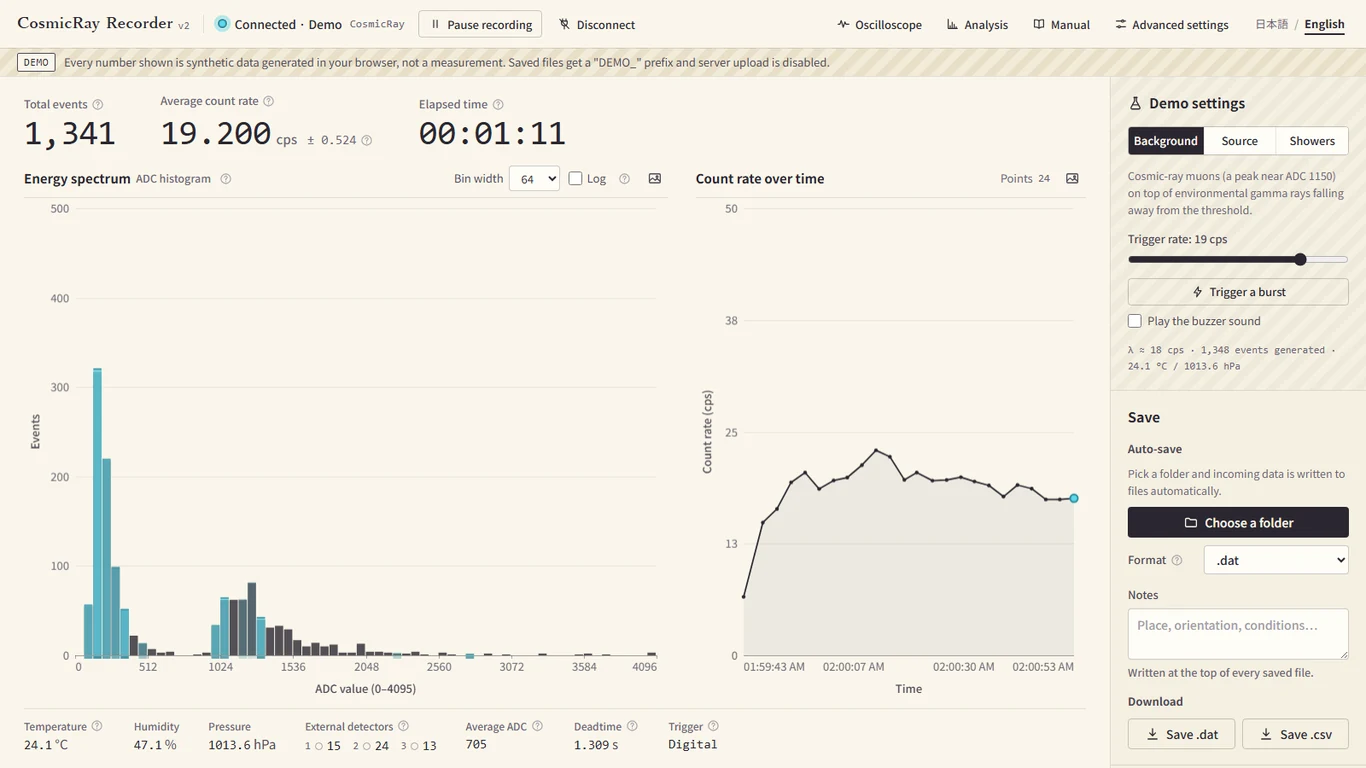
Press "Connect with USB", choose the detector's port in the browser's list and press "Connect". When the bar at the top changes to "Connected · USB", you are done. The graphs grow every time a cosmic ray arrives.
For a first try, measure for about 5 minutes. For saving, "Choose a folder" (auto-save) is recommended. Incoming data is appended to <detector name>_<date>.dat. To put what is on screen into a single file, press "Save .dat" or "Save .csv" under "Download".
Scroll the screenshot sideways →
 1
2
3
1
2
3
The browser remembers the model you chose. To choose again, press "Choose another model" at the top of the connection screen.
Scroll the screenshot sideways →
 1
2
3
4
1
2
3
4
CosmicRay).Scroll the screenshot sideways →
 1
2
3
4
5
6
7
8
9
10
1
2
3
4
5
6
7
8
9
10
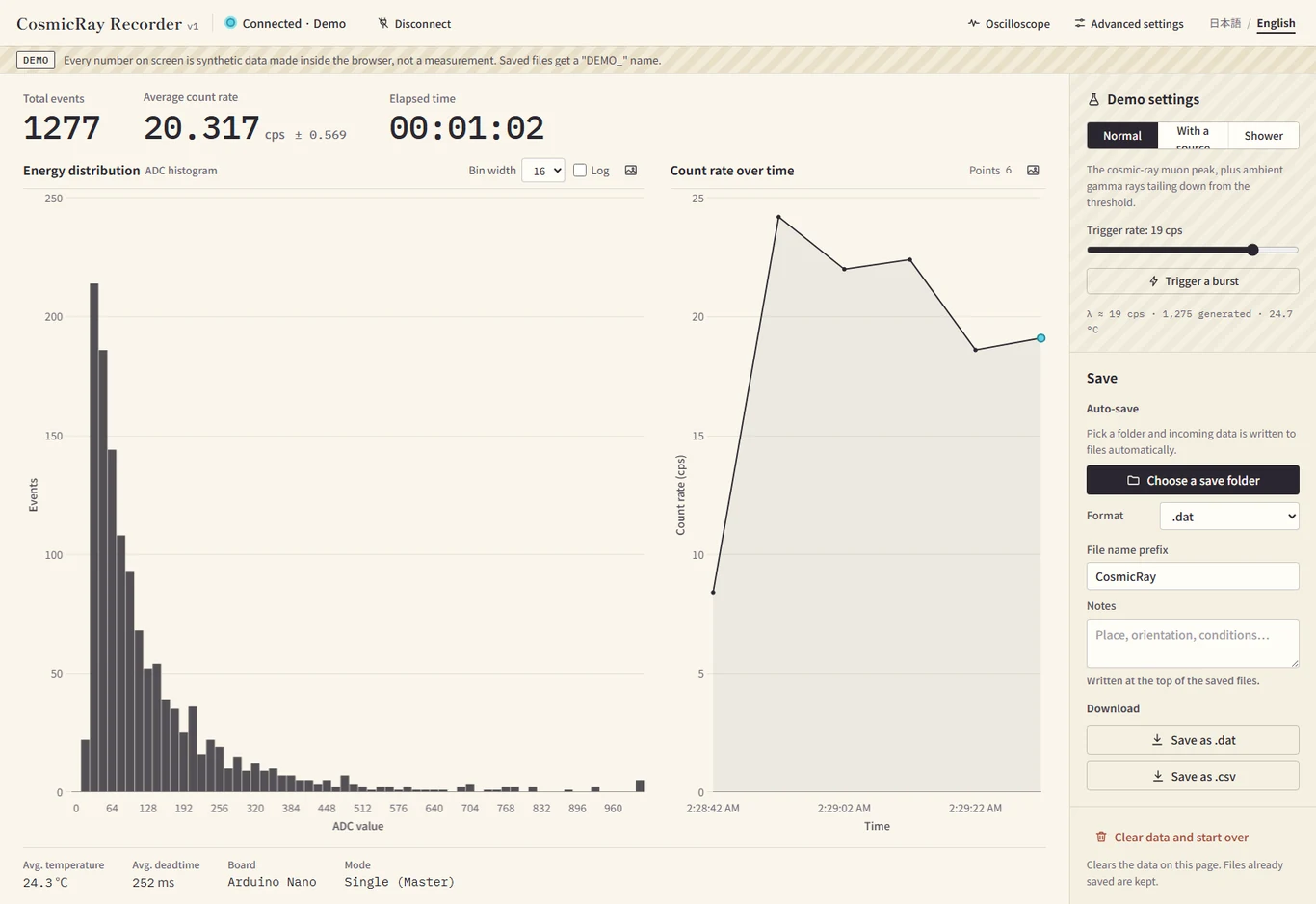
This is the demo (synthetic data). The numbers are not a real measurement.
Open https://accel-kitchen.com/app/cosmicray-monitor/v1 and press "Connect by USB". Choose the serial port (such as COMx) and the measurement starts by itself after a moment.
Check that graphs appear and that Cnt: on the detector's screen keeps going up.
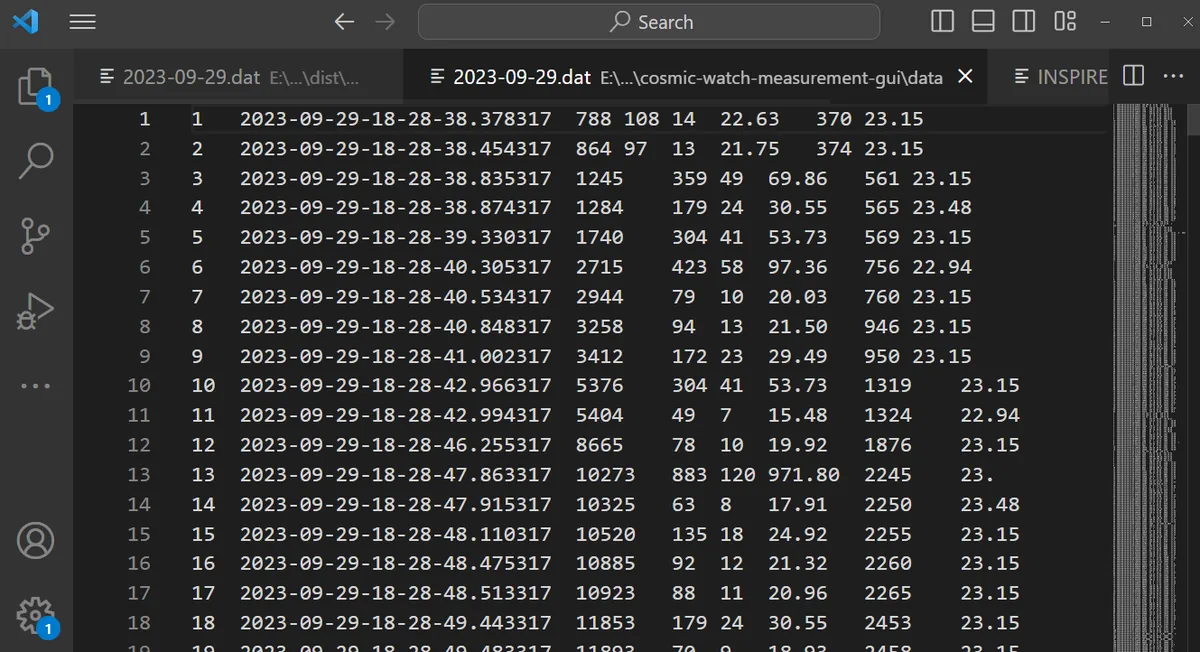
When the measurement is finished, press "Save as .csv" or "Save as .dat" to download the data to the PC (if you choose a save folder first, the data is appended automatically). A .dat file is tab-separated, and lines that start with # are the header and notes. A .csv file is comma-separated, and its first line is the header. Open it in a text editor and check that it contains data.
Scroll the screenshot sideways →
 1
2
3
4
1
2
3
4
Scroll the screenshot sideways →
 1
2
3
4
5
6
7
1
2
3
4
5
6
7
This is the demo (synthetic data). The numbers are not a real measurement.
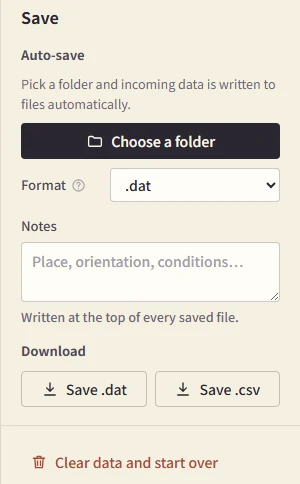
Everything is in the panel on the right of the measurement app (on a narrow screen, the "Save" button at the bottom right). Once you choose a folder, auto-save starts from there. Use auto-save for long measurements (the screen keeps at most 1 million events).
 1
2
3
4
5
1
2
3
4
5
.dat, .csv or both.# at the start of each line.RESET to the detector and returns the event number and the time to 0. Files you have already saved are not deleted.This is the v2 screen. On the v1 page the buttons read "Choose a save folder" and "Save as .dat" / "Save as .csv", and there is also a "File name prefix" field. On the v1 page, "Clear data and start over" clears only the data on screen (it does not send RESET to the detector). On the v1 page, the notes are written to the .dat file only.
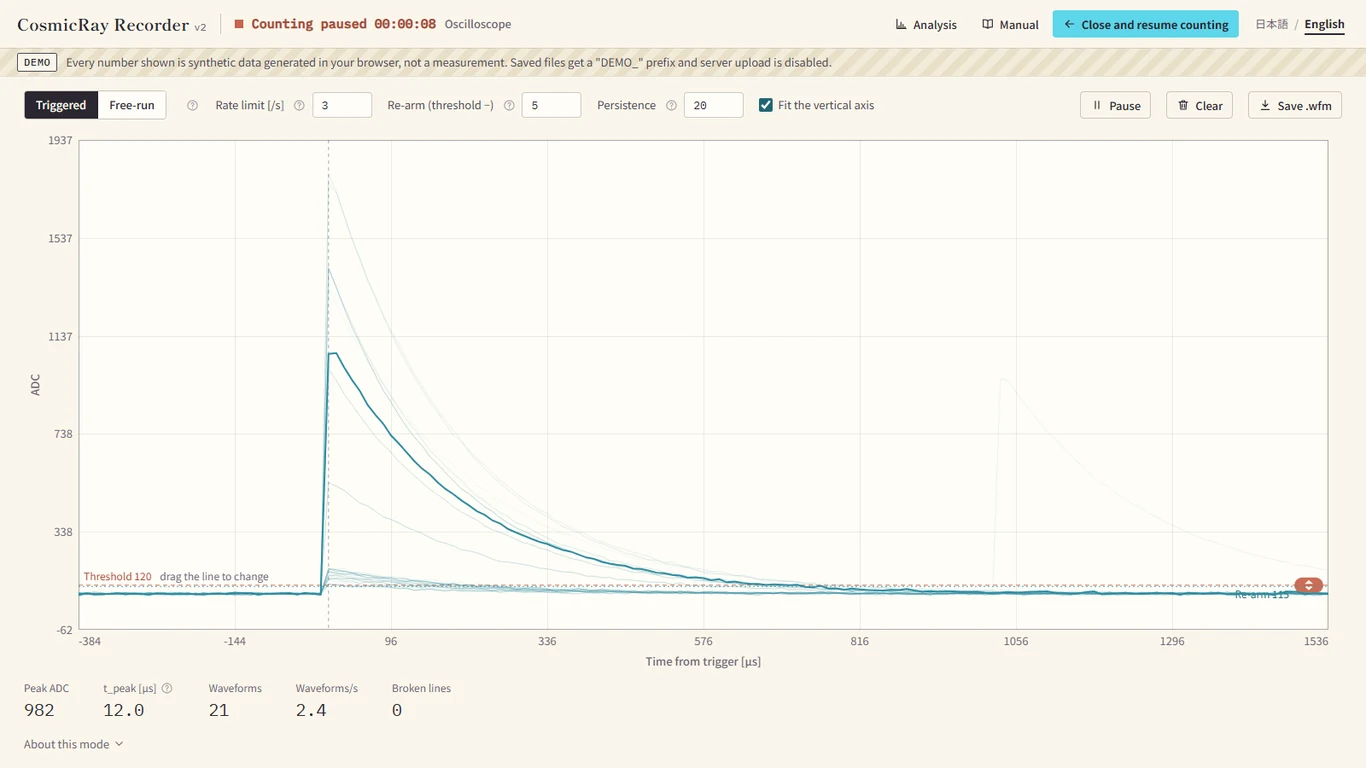
<detector name>_<date>.dat. A new file starts when the date changes, and when a file gets very large it is split into _02, _03… The first half of the name is the detector's Bluetooth name, so if you give each unit its own name, the files are separated per unit too (FAQ).<name>_<YYYY-MM-DD_HH-MM-SS>.dat (the time you started measuring).Press "Oscilloscope" in the bar at the top to see the waveform of the signal coming from the detector. Use it to check that a signal is arriving and that the threshold is right. On the v2 one point is shown every 12 µs. The v1 page has it too. The detector returns to counting by itself if no command arrives for 60 seconds, but the v1 page sends a keepalive every 15 seconds while it is open, so the detector does not return. On a v1 detector one point is shown every 6.5 µs on the Arduino Nano and every 12 µs on the ESP32-S3 version. At 9600 bps the Arduino Nano can send only about 2 waveforms per second. While it is open, all counting stops, including coincidence counting.
While it is open, the detector does not count cosmic rays. The time it stood still is subtracted as dead time, so the average count rate stays correct. Return with "Close and resume counting" (or Esc). The v2 page closes it automatically after 10 minutes without any operation. The v1 page does not close it automatically, so always press "Close and resume counting" when you have finished looking.
Scroll the screenshot sideways →
 1
2
3
4
5
6
7
8
9
10
11
12
1
2
3
4
5
6
7
8
9
10
11
12
This is the demo (synthetic data).
What you see is not the raw amplified pulse but the output of the peak-hold circuit. It rises, stops at the peak, falls slowly and is then reset. To see the raw pulse, put an oscilloscope probe on the board's test point (TP2) (10 Assembly).
If no waveform appears when you open it: in Triggered mode, nothing appears unless the A0 baseline drops below the re-arm level. Put the threshold well above the baseline, and keep the re-arm value smaller than the baseline's fluctuation. To just check, switch to Free-run and you will see the baseline.
The v1 page's oscilloscope has the same Triggered / Free-run switch and "Re-arm (threshold −)". On a v1 detector it works once you have re-flashed the updated sketch.
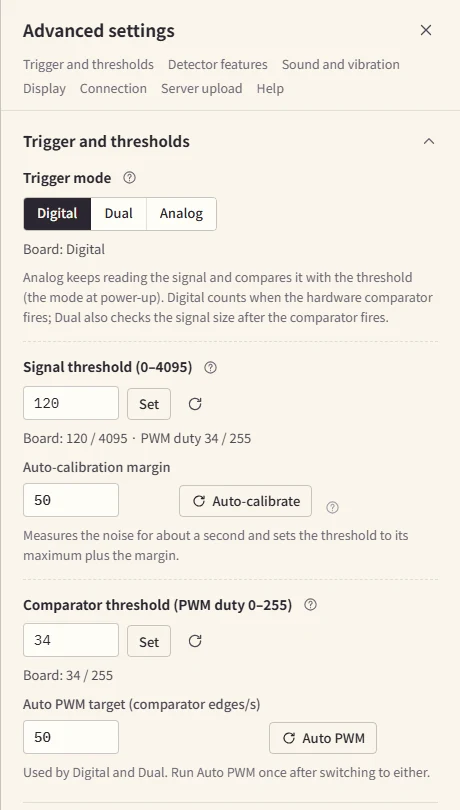
Press "Advanced settings" in the bar at the top and a panel opens from the right. The table of contents at the top of the panel jumps to each section. You can change the board's settings only while a detector is connected. The "Board: …" lines show the values the detector is using now (the "Advanced settings" of the v1 page has "Thresholds and mode", "ESP32-S3 settings", "Connection" and "Help").
 1
2
3
4
5
1
2
3
4
5
If the threshold is too low, noise gets counted too; if it is too high, small signals are missed. When in doubt, stay in Analog and use auto-calibration.
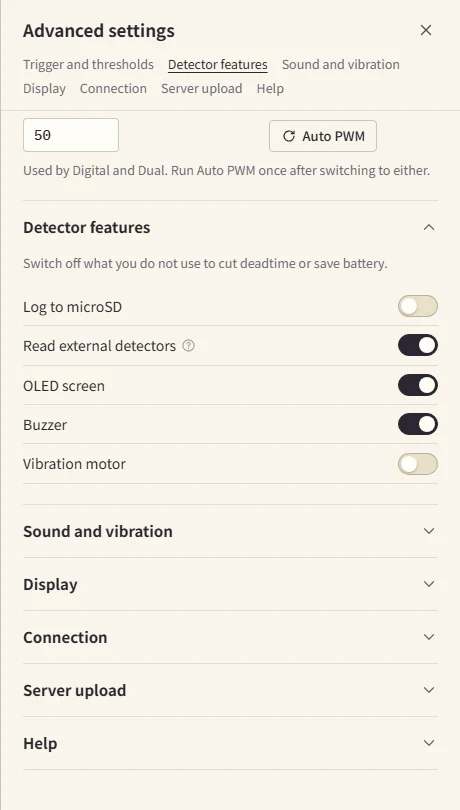
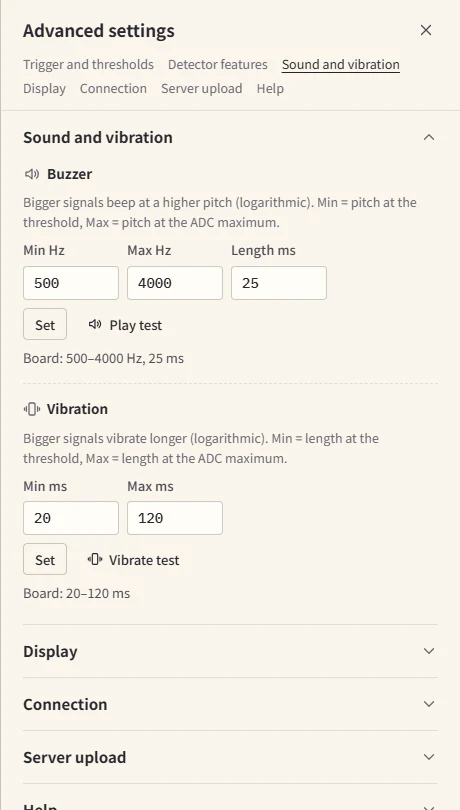
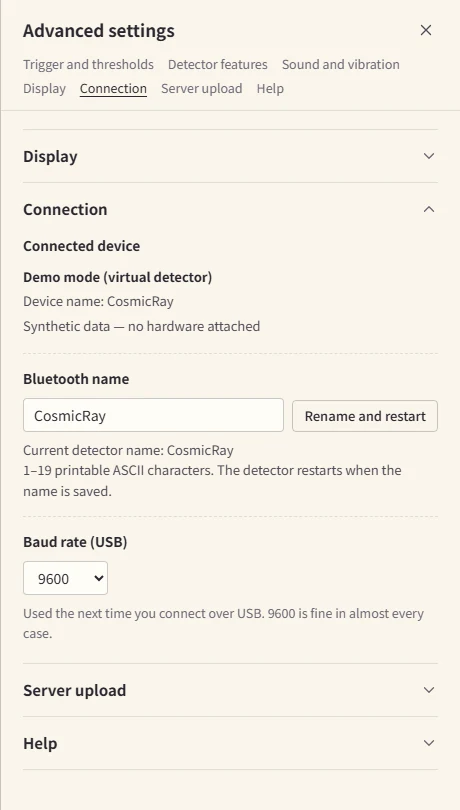
Besides these there are "Display" (how often the graphs are redrawn: 1 s, 3 s, 10 s or manual), "Server upload" and "Help".
| Feature | What it does |
|---|---|
| Analysis (plotter) | Open it with "Analysis" in the bar at the top (the v2 page has it; the v1 page does not have this button). It loads a saved .dat / .csv (including a .dat saved on the v1 page, and a microSD log) and makes histograms, zenith angle distributions and energy calibrations. No detector is needed. The file is read only inside this PC and is not sent anywhere (06 Data and analysis). |
| Sending to a server | On the v2 page, from "Server upload" in Advanced settings you can send the events you measure to the observation server. The official record is the auto-save on this PC; the upload is a copy. In the server's current format, the humidity, pressure and external-detector columns (Dig1–3, Ana1–3) are not sent. |
| Demo | No detector is needed; synthetic data lets you try every feature. During the demo a striped band appears at the top, and DEMO_ is added to the names of saved files. |
| v2 When Bluetooth drops | If the link drops without you pressing "Disconnect", the app reconnects by itself. It starts at 1 second and doubles the interval each time (30 seconds at most, with no limit on the number of tries), and the bar at the top blinks and counts down "attempt N in M s" (N is the number of the attempt and M is the seconds to wait). Auto-save keeps writing to the same file. |
| How to open the page | Bluetooth does not work on a page opened with file://. Open it over https:// or http://localhost. |
For details that are not in this chapter (all the commands, the file formats, the pin map), see the measurement app's manual.
LOG0001.TXT (SD logging is on by default). It suits long measurements outdoors or where a PC is hard to bring.CosmicRay by default. You can connect from the measurement app, or use a generic BLE terminal app on a smartphone (Bluefruit Connect on iOS; Serial Bluetooth Terminal or nRF Connect on Android) in UART mode to see the lines and send commands.Stack two detectors and pick out only the events in which both respond at almost the same time.
Stack two detectors one above the other and record only the events in which both respond at almost the same time. Noise that arises inside a scintillator, and natural radiation such as gamma rays, reaches only one of them. That lets you pick out efficiently the cosmic-ray muons that pass through both detectors.
For an overview and an example of the connections, see also the explainer video (in Japanese).
If one unit measures about 1 cnt/s, the rate drops sharply in a coincidence measurement (it depends on the distance between the detectors and their area). To collect enough events you have to measure much longer than with a single unit. The rate is often around 0.01–0.1 cnt/s, so it can take several hours.
:Slave and the Master's screen shows :Master, and then start measuring (on an Arduino Nano, the Slave lights its LED for about 3 seconds, until the logo display has finished).The v2 has no Master or Slave. Every time the detector responds, it sends a short pulse of 100 µs or more out of the OUT jack. After waiting about 50 µs it reads the state of IN1 to IN3 and writes it in the Dig1 to Dig3 columns of the log. Every event stays in the one unit's log, and you pick out the coincident ones afterwards using the Dig columns.
The width that counts as a coincidence (how much the other unit's signal may be offset in time) is about ±50 µs, calculated from the code (it is not a measured value). Accidental coincidences (separate particles that happen to overlap) become more frequent as the rate goes up.
Dig1 = 1).EXT) is on. It is on by default. If you turn it off, not only the reading but also the OUT pulse stops, and the other unit can no longer see this one.Dig1 is 1 and only the events in which the other unit also responded remain. With up to three units, IN2 and IN3 work the same way.Before you connect the output of a device that runs at 5 V (such as a v1) to a v2 IN, check the output voltage (3.3 V or 5 V) against the circuit diagram. If 5 V goes in as it is, the microcontroller may be damaged.
What is inside the saved files, and how to begin analyzing them.
The detector outputs one line every time an event occurs: a row of numbers separated by spaces.
### Event Time[ms] ADC[0-1023] SiPM[mV] Deadtime[ms] Temp[C]Below this header come the numbers in the same order, one line per event, separated by spaces.
| Column | Meaning |
|---|---|
| Event | A running number that goes up by 1 every time the detector responds |
| Time[ms] | Time elapsed since power-on (milliseconds) |
| ADC[0-1023] | The analog value read from the SiPM. It shows the strength of the signal (minimum 0, maximum 1023) |
| SiPM[mV] | The size of the SiPM signal calculated from the ADC value (millivolts) |
| Deadtime[ms] | The total time during which it could not count (milliseconds). Processing times shorter than 1 millisecond are rounded down, so this is mostly the time spent rewriting the display and the time the oscilloscope was open |
| Temp[C] | Temperature (°C), updated every 2 seconds |
A file saved by the measurement app (.dat is tab-separated, .csv is comma-separated) has the PC's time (PC_Timestamp) in the 2nd column and an extra Mode column at the end (0 is Master, 1 is Slave). So from the 3rd column on, everything sits one column to the right of the line above.
### Event Time[us] ADC[0-4095] Deadtime[us] Temp[C] Hum[%] Press[hPa] Dig1 Dig2 Dig3 Ana1 Ana2 Ana3
42 18732450 1940 1203000 24.3 48.2 1013.2 1 0 1 2448 112 2804
How to read one line (the colors show the kind of column).
| Column | Meaning |
|---|---|
| Event | The event number (1, 2, 3… counting from power-on or from the last RESET) |
| Time[us] | Time since power-on (or the last RESET), in microseconds |
| ADC[0-4095] | The peak-hold value of this detector. It shows the strength of the signal (0–4095). It is a value read once after the trigger, not the measured peak itself |
| Deadtime[us] | The total time it could not count, in microseconds |
| Temp[C] / Hum[%] / Press[hPa] | Temperature, humidity and pressure from the BME280, updated every 2 seconds. nan if there is no sensor |
| Dig1 to Dig3 | The digital inputs of external detectors 1 to 3 (0 or 1). A 1 means the other unit was also responding at that moment |
| Ana1 to Ana3 | The analog inputs of external detectors 1 to 3 (0–4095) |
A file saved by the measurement app has the PC's time (PC_Timestamp, UTC) in the 2nd column. So from the 3rd column on, everything sits one column to the right of the line above. .dat is tab-separated, .csv is comma-separated, and lines that start with # are notes and headers.
The log on the microSD card (LOG0001.TXT and so on) has a different form. It has no PC-time column (it has 13 columns), and between the event lines there are startup messages (such as SD: ready and MODE:ANALOG) and replies to commands. A new file is made every time the detector starts. The measurement app's analysis page reads it as it is. To read it with Python, select only the lines that have 13 items (see the code below).
Divide by the time with the dead time (the time it could not count) subtracted. Do not divide the number of lines you received by the elapsed time.
Dead time includes the time spent processing one event, rewriting the display, having the oscilloscope open and so on. On the v1, processing times shorter than 1 millisecond are rounded down, so it is mostly the time spent rewriting the display and the oscilloscope time. The rate is the number of events divided by the live time.
rate [events/s] = (last Event − first Event) ÷ ((last Time − first Time) − (last Deadtime − first Deadtime))Time and Deadtime are in milliseconds for the v1 and microseconds for the v2. Make the units match before you calculate. On the v2, if Event, Time or Deadtime goes down because of a RESET or a restart, start a new segment there and add the segments together.
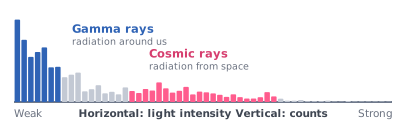
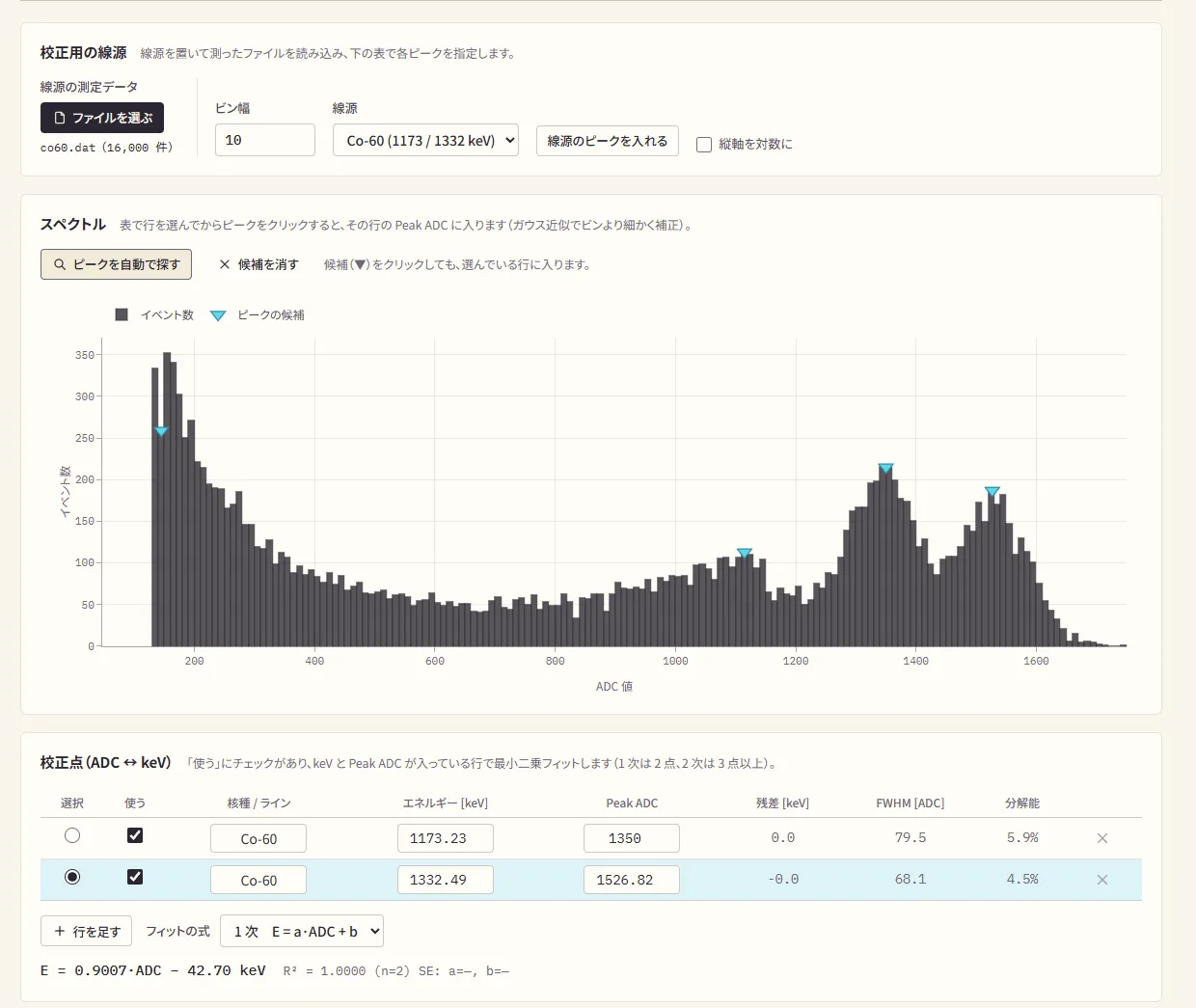
A histogram (an energy distribution) counts your data by signal size (ADC value) and plots the result. With a plastic scintillator, a gamma-ray hump on the weak-light side and a cosmic-ray hump on the strong-light side separate clearly.
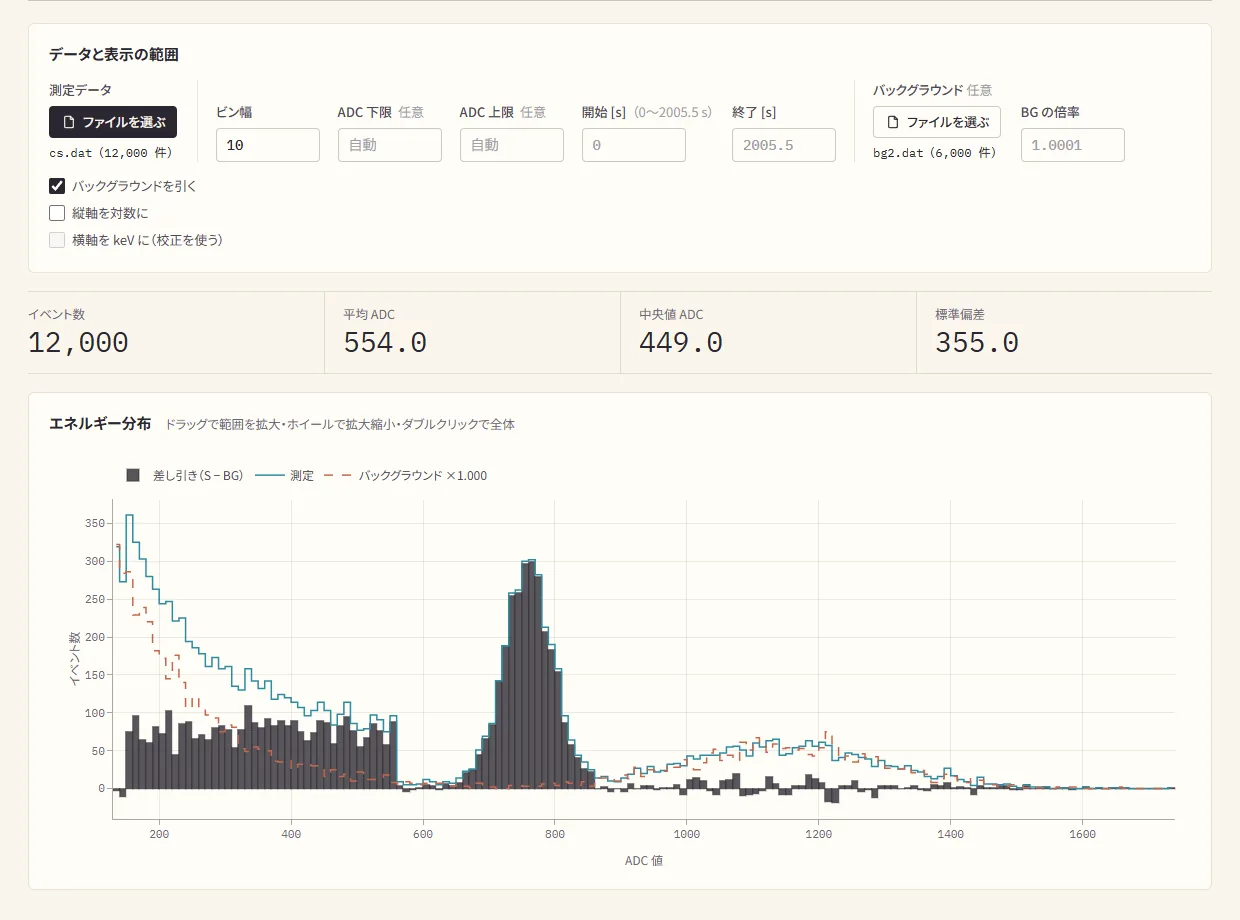
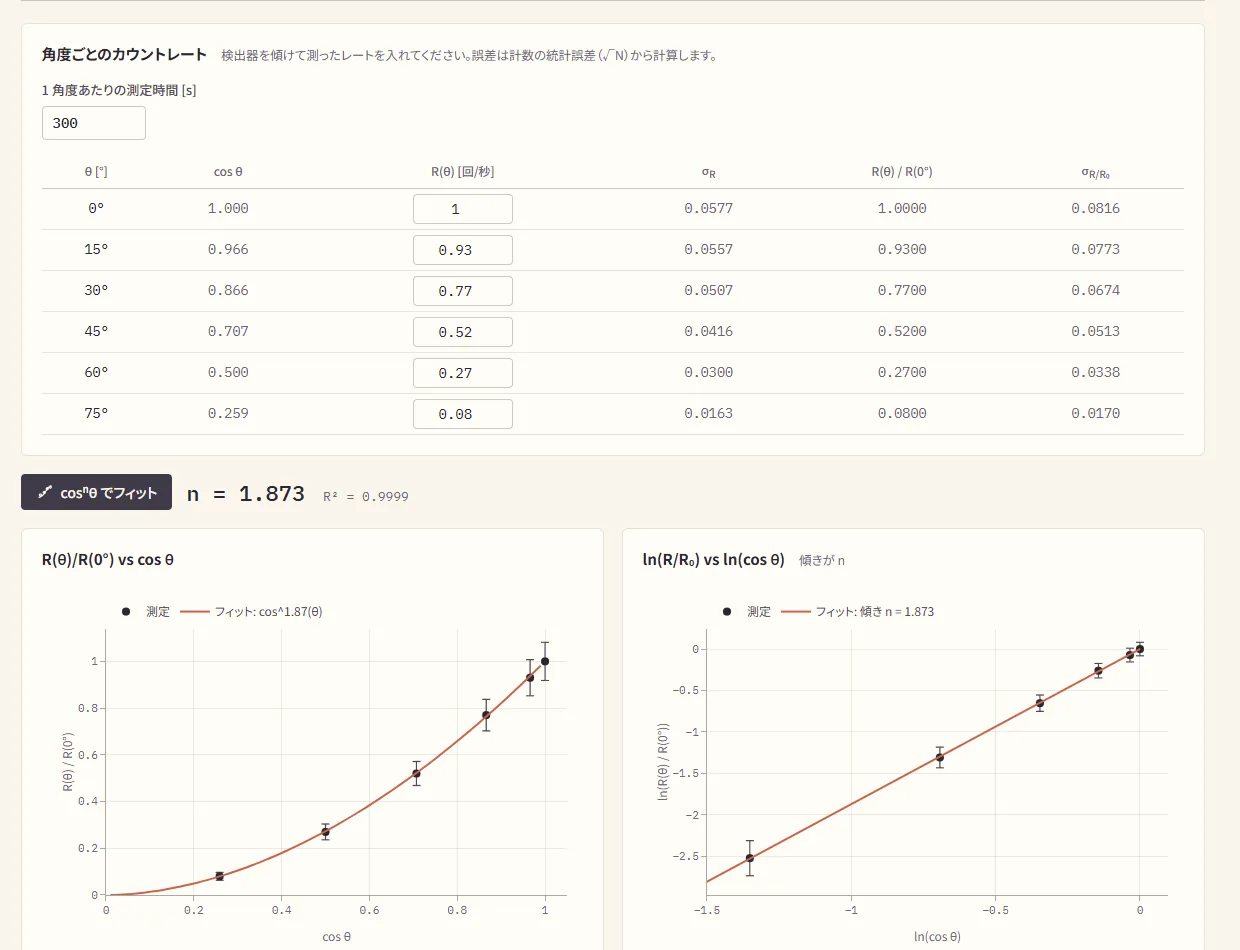
Besides "ADC histogram", the analysis page has two more tabs. Zenith angle (the zenith angle distribution): enter the count rates you measured with the detector tilted in steps of 15°, and it fits them with cosnθ. Energy calibration builds a formula that converts the ADC value to keV from the peaks of a source's known gamma rays. If one file holds several measurements (separated by a RESET or a restart), the analysis page splits them apart and adds them together.
import pandas as pd

cols = ["event", "pc_time", "time_us", "adc", "deadtime_us",
        "temp", "hum", "press", "dig1", "dig2", "dig3", "ana1", "ana2", "ana3"]
df = pd.read_csv("CosmicRay_2026-10-22.dat", sep="\t", comment="#", names=cols)

live_s = (df.time_us.iloc[-1] - df.time_us.iloc[0] - (df.deadtime_us.iloc[-1] - df.deadtime_us.iloc[0])) / 1e6
rate = (df.event.iloc[-1] - df.event.iloc[0]) / live_s
print(f"{rate:.2f} cnt/s")
If you saved a .csv, it has a header row, so pd.read_csv("yourfile.csv", comment="#") reads it (you do not need sep or names).
Change the file name to match the file you saved.
The microSD log has no PC-time column and has other lines mixed in, so read it by selecting only the lines that have 13 items, like this.
import pandas as pd

cols = ["event", "time_us", "adc", "deadtime_us", "temp", "hum", "press",
        "dig1", "dig2", "dig3", "ana1", "ana2", "ana3"]
rows = [l.split() for l in open("LOG0001.TXT") if not l.startswith("#")]
rows = [r for r in rows if len(r) == 13 and r[0].isdigit()]
df = pd.DataFrame(rows, columns=cols).apply(pd.to_numeric, errors="coerce")import pandas as pd
# when you saved a .csv (comma-separated, with a header row)
df = pd.read_csv("data.csv", comment="#")
# when you saved a .dat (a # header and tab-separated)
cols = ["event", "pc_time", "time_ms", "adc", "sipm_mV", "deadtime_ms", "temp", "mode"]
df = pd.read_csv("data.dat", sep="\t", comment="#", names=cols)Change the file name to match the file you saved.
Google Colaboratory is a free service that runs Python in your browser. You do not need to install Python on your PC; a Google account is all you need. In the exercises you analyze sample files and try out various kinds of cosmic-ray analysis. If you work through them while measuring for yourself, you will see how to apply them to your own research. The exercises are written in Japanese.
Sign in at the top right, sign in with your own account.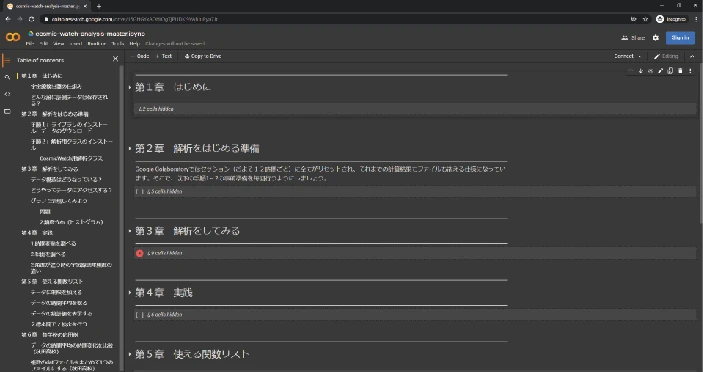
Save a copy in Drive. The notebook is copied to your own Drive and you can edit it freely.You can ask a generative AI such as ChatGPT to help with your analysis code. For example, asking it to "write code that makes a histogram with Plotly" is a good use. But always read the code it gives you and understand what it does before you use it. If you paste it in without understanding, you will not be able to fix it when an error appears, or to interpret the result. It is also a good idea to ask the AI to explain what each line does.
The column order and units of the exercises' sample data may differ from your own data. Check the columns of your data against the tables above before you load it.
If something is unclear or you are stuck while working on your research, look here first.
SETUP
Check the following in order.
If that does not solve it, ask a mentor on Discord.
Yes. A Chromebook supports the Web Serial API of Chrome-based browsers, so you can measure straight from the measurement app without installing a driver.
MEASURING
It depends on the purpose. As a guide:
For details, see the course material "Poisson statistics and ±√N" (in Japanese). It also explains why 400 events give a relative error of 5 %.
Turn off sleep in the PC's power settings.
If "USB selective suspend" is enabled in the PC's USB power management, power to the USB port may be cut off. We recommend disabling it.
v1 Check the following.
:Slave and the Master's screen show :Master? If not, choose Slave again in the app.v2 Check the following.
EXT (reading the external detectors) switched on? A detector with it off cannot be seen by the other unit.Dig1 is 1.For more detail, see 05 Coincidence.
The detector runs on power from the USB cable. Outdoors you can use the following.
A note about power banks: some power banks have a "low-power mode" or "auto-off" that switches the output off by itself when a low-power device is connected. The detector draws very little, so the power may cut out partway through a measurement. Test it for a short time beforehand to be sure it does not switch off. It is safer to choose a power bank whose low-power mode can be disabled, or that has an always-on mode.
v2 Measuring without a PC: the v2 can log to a microSD card by itself. Insert a FAT32 microSD card and power on (04 Measure).
v1 Measuring without a PC: the v1 has no SD card, so it needs a PC to record data. To record without a PC, use a v2, which can log to a microSD card.
When you measure outdoors, check beforehand whether you need permission for the place.
DETECTOR SETTINGS
When it restarts, the detector starts over from the beginning.
ANALOG. The oscilloscope settings (rate limit, capture mode and re-arm) also go back to their initial values.LOG0002.TXT) at every startup.Duty), the auto-calibration margin, the on/off state of the features (microSD, external detectors, OLED, buzzer, vibration), the sound and vibration settings and the Bluetooth name.When you change the Bluetooth name and save it, the detector also restarts by itself after about 1 second.
Give each unit its own Bluetooth name. The name is used in the Bluetooth list and also at the beginning of the saved file names, so the files are separated per unit too.
- and _ are kept in the file name; every other character becomes _ ("Lab 1" becomes Lab_1).If you reconnect to a different detector, the notice "A different detector is connected" appears. The rate, elapsed time and counts on the screen still include the previous detector, so press "Clear data and start over" when you want a clean measurement.
SD: ready and SD: logging to /LOG0001.TXT, logging has started. If SD: init failed appears, check the card's format, its insertion and the wiring.LOG0001.TXT, LOG0002.TXT…). The PC's time is not recorded, so note down for yourself the time you started measuring."Firmware" is the program that runs inside the detector's microcontroller. How the signal is read, how the threshold is chosen and the format of the output data are all decided by it.
For everyday measuring (measure with the web app and save the data), you do not need to read this chapter. You do not need to install the Arduino IDE either.
Read it when:
| Unit | Microcontroller | Sketch |
|---|---|---|
| v1 standard | Arduino Nano (Mini-B) | COSMICRAY_DETECTOR_v1.ino |
| v2 | Arduino Nano ESP32 (Type-C) | COSMICRAY_DETECTOR_ESP32-S3-Nano-v2.ino |
| v1 with a Nano ESP32 swapped in | Arduino Nano ESP32 (Type-C) | COSMICRAY_DETECTOR_ESP32-S3-Nano.ino (there is no public link yet; if you need it, ask a mentor or write to info@accel-kitchen.com) |
The measurement app supports the v2 sketch in this table (the end of the measurement app's manual also lists it as the "supported firmware").
The oscilloscope's "Triggered" / "Free-run" switch and "Re-arm" need a sketch dated 2026-10-23 or later. An older sketch still counts, but these two settings have no effect (with an old sketch the v1 page shows "This firmware does not support the oscilloscope."). Check that the sketch you flash is the new version.
| Unit | Libraries to install |
|---|---|
| v1 Arduino Nano | Adafruit SSD1306 (1.0.1 or later), Adafruit GFX Library (1.0.2 or later), TimerOne (1.1.0 or later) |
| v2 | Adafruit SSD1306, Adafruit GFX Library, Adafruit BME280 Library, Adafruit Unified Sensor BLE, Preferences and SD come with the ESP32 Arduino core |
| v1 with a Nano ESP32 | Adafruit SSD1306, Adafruit GFX Library |
esp32 (Espressif Systems) and install it. Core 3.x is required.Arduino Nano ESP32. ESP32S3 Dev Module also works. The sketch specifies pins by GPIO number. If in doubt, ESP32S3 Dev Module is the safe choice. If you choose Arduino Nano ESP32, set "Pin Numbering" under "Tools" to "By GPIO number" (this comes from the explanation in the sketch's comments; it has not yet been checked on a real unit). Non-official clone boards may fail to flash.Enabled. If this is wrong, nothing appears on the serial port.COMxx on Windows, /dev/cu.usbmodem… on a Mac).Booting v2... appears, you are done.Close the measurement app while flashing (the two would fight over the port).
The board, USB CDC On Boot, boot mode and port are chosen as for the v2 (Core 3.x). If USB CDC On Boot is Disabled you can still flash it, but the serial output goes to the D0 / D1 pins instead of USB, so nothing reaches the PC's serial monitor or the measurement app.
This unit runs a sketch that is different from the v1's (COSMICRAY_DETECTOR_ESP32-S3-Nano.ino), and it differs from the v1 in the following ways. The ADC is 12 bit (0–4095). The output has 7 columns including a Mode column. The threshold is "the noise maximum + 60", and Res is Sig − 20. Of the settings, the margin, the difference from Res, the coincidence method and window, how the pulse height is taken, the OLED and the Bluetooth name are saved (the signal threshold is measured again at every startup). A command can be up to 47 characters. Coincidence works in a different way and uses commands such as SET_COINC and SET_WINDOW. The v1 numbers and commands in this chapter do not apply to it as they are. At startup, diagnostics of the board, the pins and I²C (lines that begin with ###) are printed on the serial port. If the OLED shows nothing, the command I2CSCAN checks the connection.
The v1 board was designed for an Arduino Nano that runs at 5 V, and the amplifier output is wired to the microcontroller's A0 with no voltage divider. The ESP32-S3's inputs only tolerate 3.3 V, so without a divider between A0 and GND, or a clamp to 3.3 V, you may damage the microcontroller. The same goes for the coincidence line (D6). When you connect it to a 5 V v1, put in a level shifter. If you make a 3.3 V ESP32 the Master and connect a 5 V v1 as the Slave, the output reaches only about 2.8 V and the Slave may not be able to read it.
The threshold is the line that says "count signals from this size upward as particles". If it is too low, noise is counted; if it is too high, small signals are missed. Either way, it is set automatically every time you power on.
With a high threshold like ③, small gamma rays are no longer counted. Decide according to what you want to count. When in doubt, use the automatically chosen value.
SET_THRESH:<sig>,<rst> (rst must be smaller than sig, and sig at most 1023).Thr on the OLED): right after startup, the detector reads A0 100 times (every 10 ms, about 1 second) and sets the maximum + a margin (initially 50). For example, if the noise is 12 to 44, the threshold is 94. You can change the margin with AUTO_THRESH:<margin> or SET_AUTO_MARGIN; the value you set is saved and is used at the next startup too. The threshold itself goes back to this auto-calibrated value the next time you power on, even if you set it by hand.ANALOG compares the peak-hold value on A0 with the threshold in software. DIGITAL triggers on an interrupt from the external comparator's output and does not use the signal threshold. DUAL decides with the comparator and then also compares the signal size with the signal threshold, discarding it if it is smaller. At power-on it always starts in ANALOG.Duty on the OLED): made from the PWM value (0–255) on D2. It is used only in DIGITAL and DUAL, and AUTO_PWM adjusts it automatically (about 7–8 seconds). Run it once after you switch to DIGITAL or DUAL.ANALOG. To set the threshold again, run AUTO_THRESH with no light getting in.You can read and write the settings by sending commands to the detector. The buttons of the measurement app send these commands behind the scenes. To send them by hand, use the Arduino IDE's serial monitor (9600 baud, line ending LF or CR) or the app's "Advanced settings". One line is one command, and at most 31 characters for the v1.47 characters for the v2.
| Command | What it does | Response |
|---|---|---|
SET_MODE:0 / SET_MODE:1 | 0 is Master, 1 is Slave | MODE:0 / MODE:1 |
GET_MODE | Read the current role | MODE:0 / MODE:1 |
SET_THRESH:<sig>,<rst> | Set Sig and Res | THRESH:<sig>,<rst> |
GET_THRESH | Read the current thresholds | THRESH:<sig>,<rst> |
AUTO_THRESH | Measure the noise again and set the thresholds automatically | THRESH:<sig>,<rst> |
SET_SCOPE:ON / OFF, GET_SCOPE | Oscilloscope (waveform display). It does not count while ON | SCOPE:ON / SCOPE:OFF |
SET_SCOPE_RATE:<1–20> / GET_SCOPE_RATE | The maximum number of waveforms sent (per second) | SCOPE_RATE:<n> |
SET_SCOPE_TRIG:NORMAL / FREE, GET_SCOPE_TRIG | How the oscilloscope captures. NORMAL captures only when the threshold is crossed, and FREE keeps capturing without a trigger (initially NORMAL) | SCOPE_TRIG:NORMAL / SCOPE_TRIG:FREE |
SET_SCOPE_REARM:<0–1023>, GET_SCOPE_REARM | After one waveform has been captured, the next is not captured until A0 falls back to "threshold − this value" or below (initially 5) | SCOPE_REARM:<n> |
v1 The v1's settings are not saved. After a power cycle the thresholds go back to being set automatically. The oscilloscope settings (rate limit, capture mode and re-arm) are not saved either, and go back to their initial values after a power cycle. If no command arrives for 60 seconds, the oscilloscope turns itself OFF and counting resumes (but the v1 page sends a keepalive every 15 seconds while it is open, so this does not happen there).
| Command | What it does | Response |
|---|---|---|
GET_THRESH | Read the signal threshold and the PWM value | THRESH:<sig> DUTY:<duty> |
SET_THRESH:<0–4095> | Set the signal threshold (it goes back to the auto-calibrated value the next time you power on) | THRESH:… |
AUTO_THRESH / AUTO_THRESH:<margin> | Measure the noise for about 1 second and set it automatically. Run it with no light getting in. If you add <margin>, it changes the margin (and saves it) and then runs | THRESH:… |
GET_MODE / SET_MODE:ANALOG|DIGITAL|DUAL | Trigger mode | MODE:ANALOG and so on |
SET_PWM:<0–255> / GET_PWM / AUTO_PWM | The comparator threshold (for Digital and Dual) | PWM:<duty> |
SET_SCOPE:ON / OFF | Oscilloscope. It does not count while ON (that time counts as dead time). If the state does not change it returns nothing, so check with GET_SCOPE | SCOPE:ON / SCOPE:OFF |
SET_SD / SET_EXT / SET_OLED / SET_BUZZER / SET_VIB :ON|OFF | Switch the microSD, external detectors, OLED, buzzer and vibration on or off (saved) | SD:ON and so on |
SET_BEEP:<min_hz>,<max_hz>,<ms> / BEEP_TEST | The pitch and length of the buzzer (the bigger the signal, the higher the note) | BEEP:500,4000,25 |
SET_AUTO_MARGIN:<n> / GET_AUTO_MARGIN | The margin for auto-calibration (saved) | AUTO_MARGIN:<n> |
SET_VIB_MS:<min>,<max> / VIB_TEST | The length of the vibration (1–500 ms, min < max) and a test vibration | VIBMS:<min>,<max> |
SET_SCOPE_RATE:<1–20> / GET_SCOPE_RATE | The maximum number of waveforms the oscilloscope sends (per second, initially 3; not saved) | SCOPE_RATE:<n> |
SET_SCOPE_TRIG:NORMAL / FREE / GET_SCOPE_TRIG | How the oscilloscope captures (initially NORMAL; not saved). FREE keeps capturing the newest window without a trigger | SCOPE_TRIG:NORMAL / SCOPE_TRIG:FREE |
SET_SCOPE_REARM:<0–4095> / GET_SCOPE_REARM | After one waveform has been captured, the next is not captured until A0 falls back to "threshold − this value" or below (initially 5; not saved) | SCOPE_REARM:<n> |
SET_BLENAME:<name> / GET_BTADDR | Change the Bluetooth name (when you save it, the detector restarts by itself after about 1 second) / read the board's address | BLENAME:… / BTADDR:… |
RESET | Reset the event number, the elapsed time and the dead time to 0 | RESET:OK |
v2 Settings that stay: the PWM value, the auto-calibration margin, the on/off state of the features, the buzzer and vibration settings and the Bluetooth name. Settings decided again at every startup: the signal threshold (auto-calibration) and the trigger mode (always ANALOG). The oscilloscope settings (rate limit 3, capture mode Triggered, re-arm 5) also go back to their initial values at every startup. While a command is running the detector does not count, and that time goes into the dead time (auto-calibration takes about 1 second and AUTO_PWM about 7–8 seconds). Commands are case-sensitive, and a line that is too long (more than 47 characters) is discarded. The list of all commands and the pin map are in the appendices of the measurement app's manual.
Find the cause and the remedy from the symptom. If it does not get solved, ask a mentor on Discord.
| Symptom | Cause | Remedy |
|---|---|---|
v1 Sig is 1023 and nothing is detected | The connector between the upper and lower boards has come loose | Open the case and check; if it has come loose, reconnect it |
v2 Thr is stuck at 4095 and nothing is detected | The noise measured at startup was too large. The connector to the SiPM board may have come loose, or there may not be enough light-shielding | Open the case, check the connector and the light-shielding, and then restart |
v1 Sig is 100 or more | Outside light is getting in, or there is noise | Redo the light-shielding. Check that the board is not touching anything outside |
v2 Thr is far above 100 (several hundred or more) | Outside light is getting in, or there is noise (the threshold is the startup noise + 50) | Redo the light-shielding and restart (the RESET button, or unplug and replug USB) |
| The rate is abnormally high (above 10 cnt/s) | Poor light-shielding lets outside light reach the SiPM | Reinforce the light-shielding with aluminum tape or similar. Check that the tape has no gaps |
| v2 The rate is abnormally high (the light-shielding is good) | The threshold (Thr or Duty) is too low. The peak-hold reset line (D8) is not working. Noise is on the comparator output (D0) | Redo AUTO_THRESH or AUTO_PWM. Check the wiring and the ground on the board |
| The rate is extremely low (below 0.1 cnt/s on the plastic version) | The threshold is too high, or the signal is weak | Restart the detector (the threshold is set automatically at startup). If it does not improve, ask a mentor |
| The OLED shows nothing | A poor I²C connection, or a faulty display | Open the case and check the display's connector. On the v2, check in the app's "Detector features" that the OLED is on. The OLED address is 0x3C (the shipped firmware is fixed to 0x3C, and a display at 0x3D will not show anything). If it does not improve, ask a mentor |
| In coincidence measurement the Slave (or the receiving unit) does not respond | A poor cable connection or contact. The roles are wrong | Check :Master / :Slave on the screens and replug the cable. Choose Slave again in the app.Check how OUT and IN1 are connected, and that EXT is on. |
| v1 The temperature is an abnormal value | A model without a temperature sensor, or a poor contact | Check the model. Leave the temperature column out of the analysis |
v2 Temperature, humidity and pressure stay -- (or nan) | The BME280 has not been found | Check the I²C address (0x76 or 0x77) and the wiring (SDA = A4, SCL = A5). A BMP280 (temperature and pressure only) gives no humidity |
v2 Dig1 to Dig3 stay 0 (or 1) | Reading the external detectors is off, or the output voltage (3.3 V or 5 V) does not match | In the app's "Detector features", check that reading the external detectors is on for both detectors. Check the output voltage of the external detector and whether a pull-up or pull-down is needed, against the circuit diagram |
v2 Nothing appears on the serial port (Booting does not appear) | The board setting, or a different baud rate | Check that the board is Arduino Nano ESP32, USB CDC On Boot is Enabled and the baud rate is 9600, then flash again. Pressing RESET while holding BOOT puts it in flashing mode |
| v2 Nothing is logged to the microSD card | The card's format (it is not FAT32). The card was inserted after startup. Logging to the microSD is off | Insert a card formatted as FAT32 before you power on. In the app's "Detector features", check that logging to the microSD is on (steps) |
| Symptom | Cause | Remedy |
|---|---|---|
| No port is shown in the web app | The driver is not installed. A bad cable. A browser other than Chrome or Edge | On Windows with a v1, check the driver. Try another USB port and cable. Open the app in Chrome or Edge |
| "Could not open the serial port" appears | Another application is using the port | Close the Arduino IDE's serial monitor and any other browser tab with the app open, then try again |
| v2 The detector does not appear in the Bluetooth list | The name does not match. A power or distance problem. It is connected to something else | Check that "Detector name" in the app is the same as the detector's name (CosmicRay by default; the match is case-sensitive). Check that it is not connected to another smartphone or PC. If the link drops after connecting, the app reconnects by itself (the interval starts at 1 second and doubles, up to 30 seconds; auto-save continues in the same file) |
| No waveform appears when I open the oscilloscope | In Triggered mode, the A0 baseline does not fall below the re-arm level (threshold − re-arm value). The threshold is too high. An old sketch | Move the threshold line well above the baseline, and make the re-arm value smaller than the baseline's fluctuation. To just check, switch to "Free-run" (how it captures). If "Triggered" / "Free-run" has no effect, flash a sketch dated 2026-10-23 or later |
| I cannot find the saved file | It went to a different download folder | Open the location from the browser's download history. Check the save location setting |
| Google Colab gives an error | It is not connected to a runtime. The cells were run in the wrong order | Try "Runtime" → "Run all" at the top of the screen. If that does not help, choose "Restart runtime" and run the cells from the top in order |
| The data has gaps (the event numbers jump partway) | An unstable USB connection. The PC went to sleep | Replug the cable. For long measurements, turn off the PC's sleep setting |
| The data suddenly stops during a measurement | The USB cable came out. The PC went to sleep | Check the cable connection. Turn off sleep in the PC's power settings |
If it does not get solved, ask a mentor on Discord (info@accel-kitchen.com also works). If you can write down the following, we can answer faster.
How to assemble the assembly kit. If you received a finished unit, you do not need to read this.
There is an assembly video (part of it is out of date): YouTube
The photos for the steps come from the original Google Doc. See also "検出器組み立て方法" (how to assemble the detector) there (in Japanese).
Before you start soldering, read "For your safety" in "02 Models and how it works". Unplug the USB cable before you reconnect any boards.
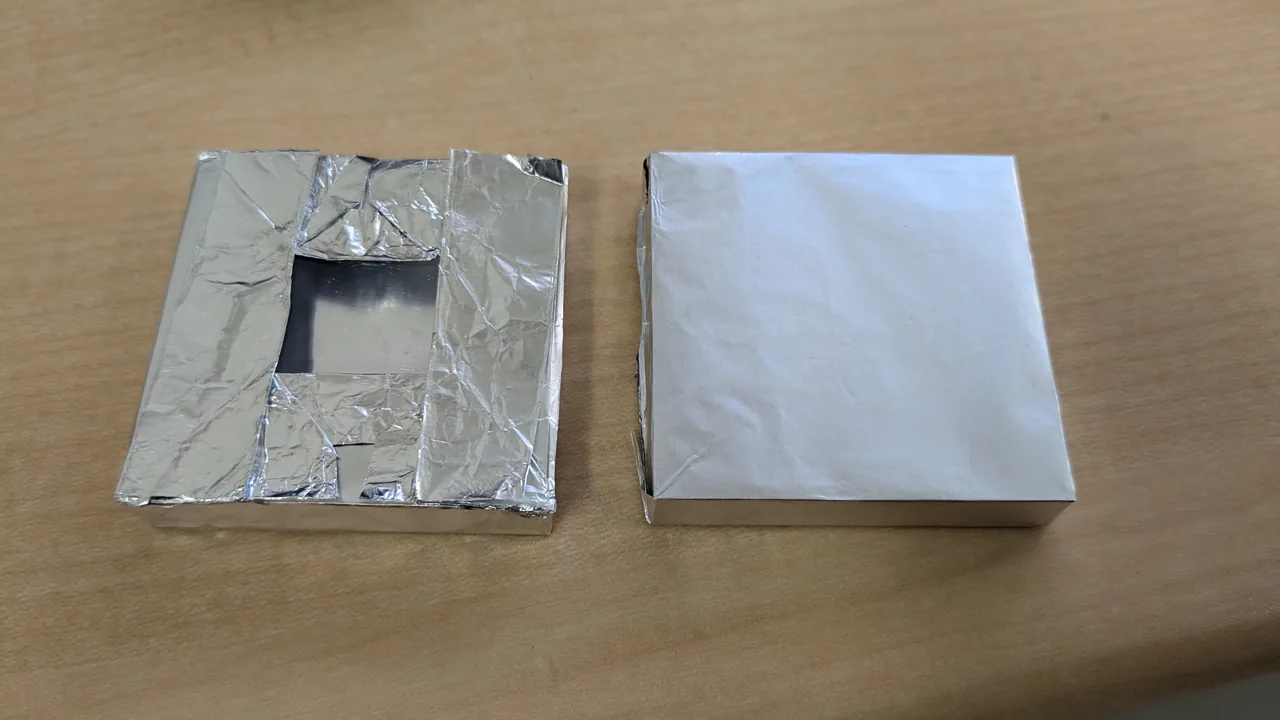
Wrap the whole thing with the shinier side of the foil on the inside. Leave the middle of one face open so the SiPM can sit against it (it is a good idea to leave the opening wider than in the photo).
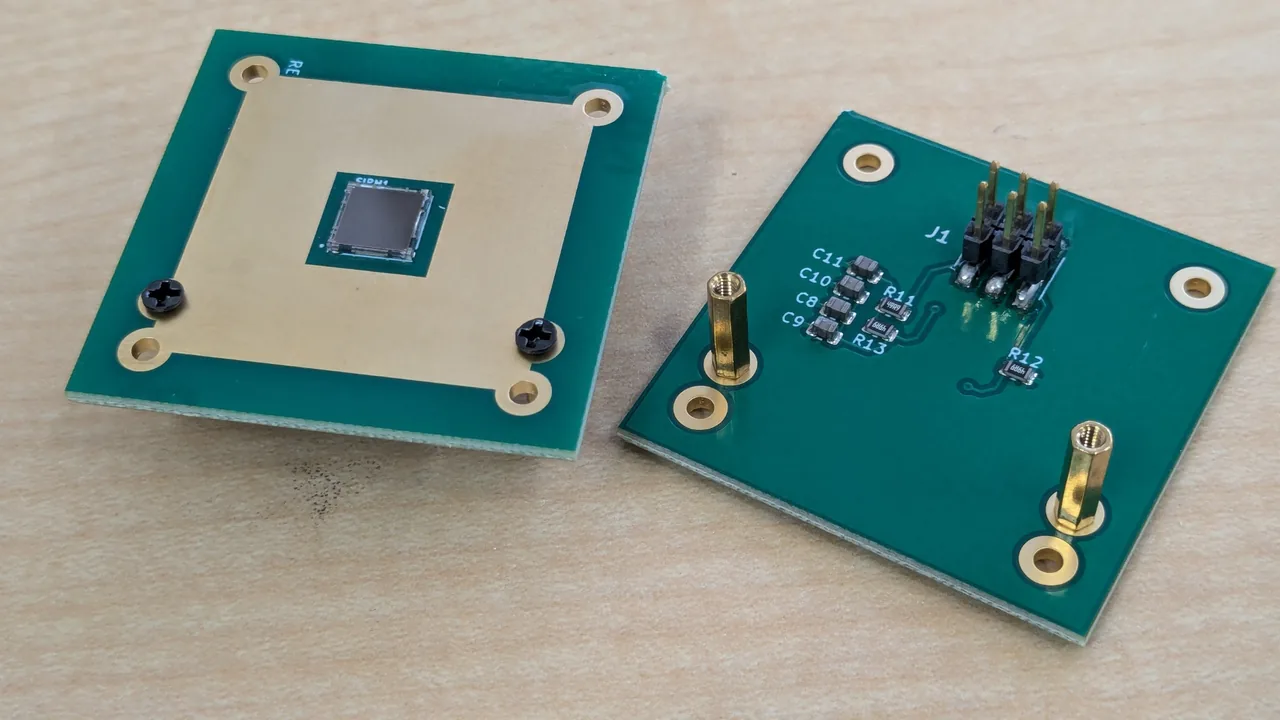
Solder the 6-pin connector to the board, then screw on the spacers.
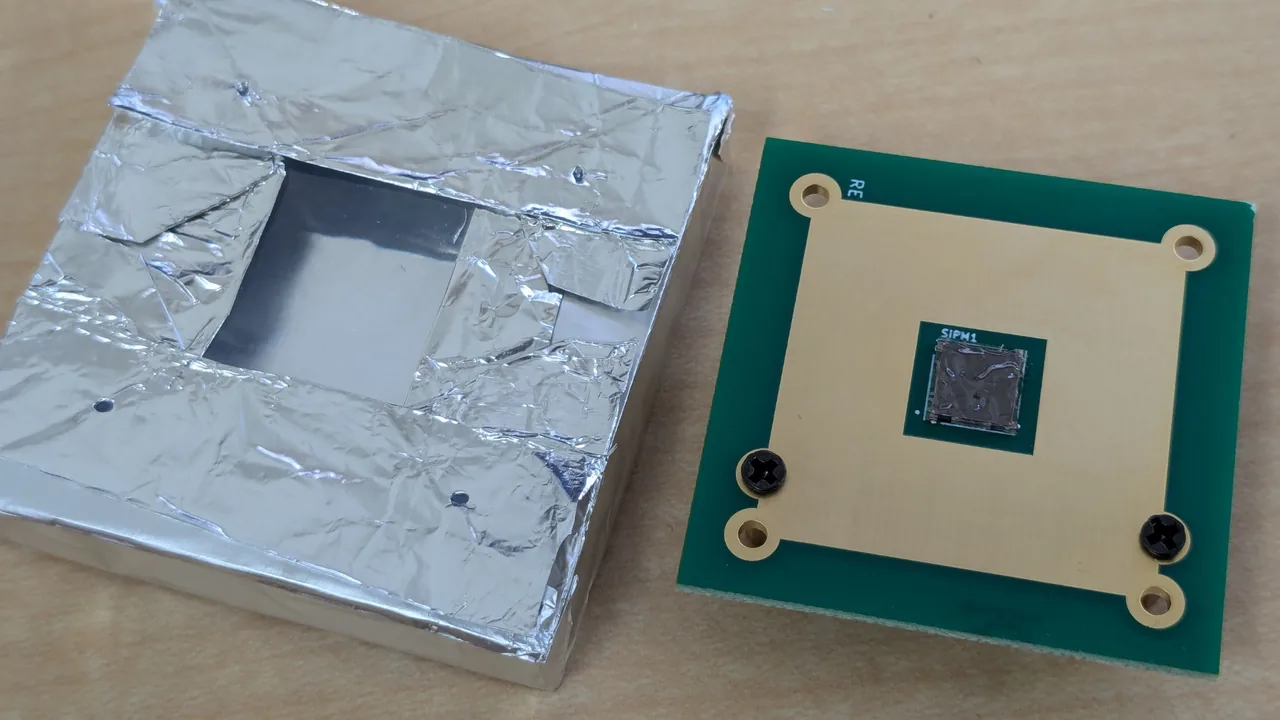
Spread grease on the light-receiving surface of the SiPM and press it against the window you opened in the scintillator's wrapping.
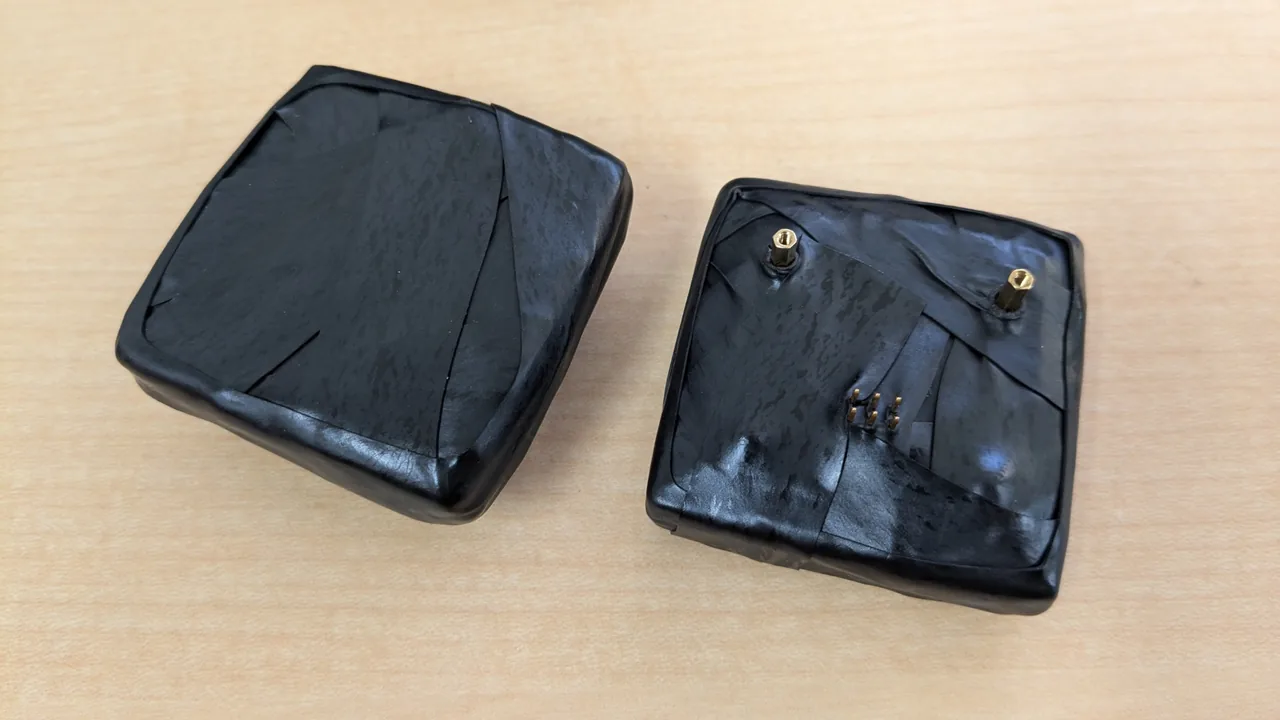
Wind light-shielding tape all the way round to finish. Wind it so that every part has 2 layers or more. Leave the spacers and the 6-pin terminals sticking out. After winding the tape, poke holes for them with a screwdriver or similar.
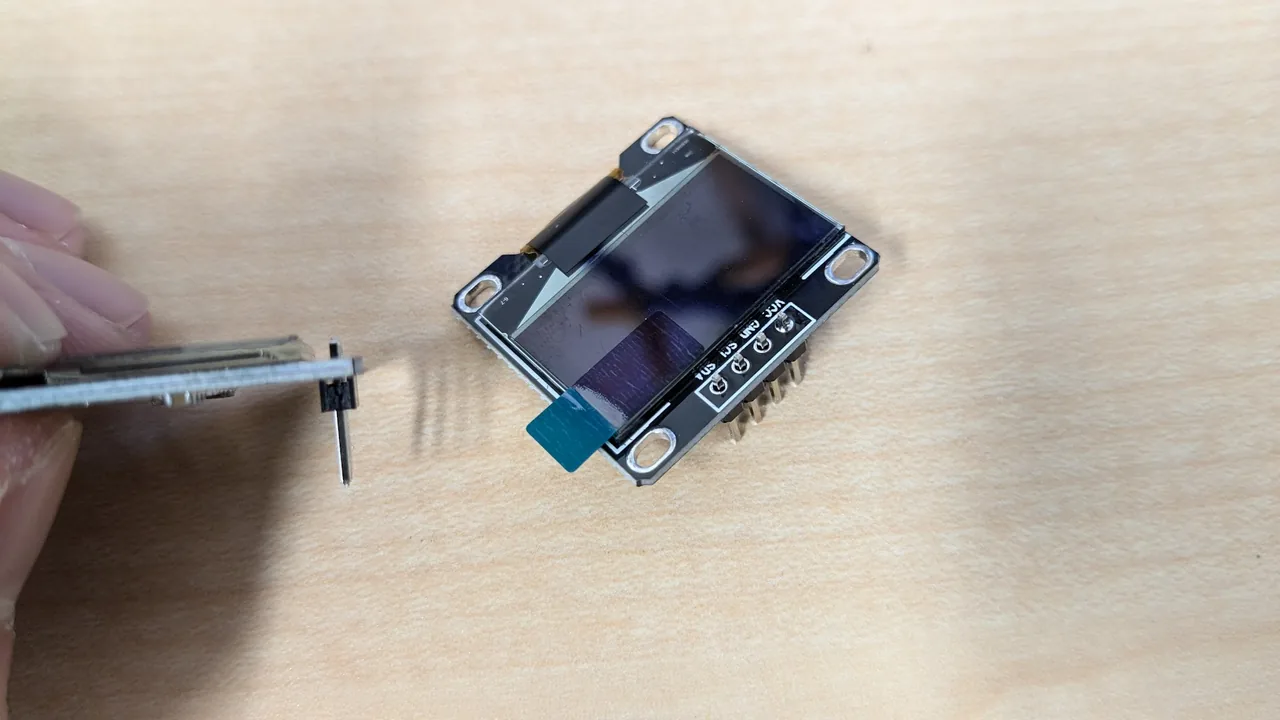
Solder it so that it stands vertical when seen from the side.
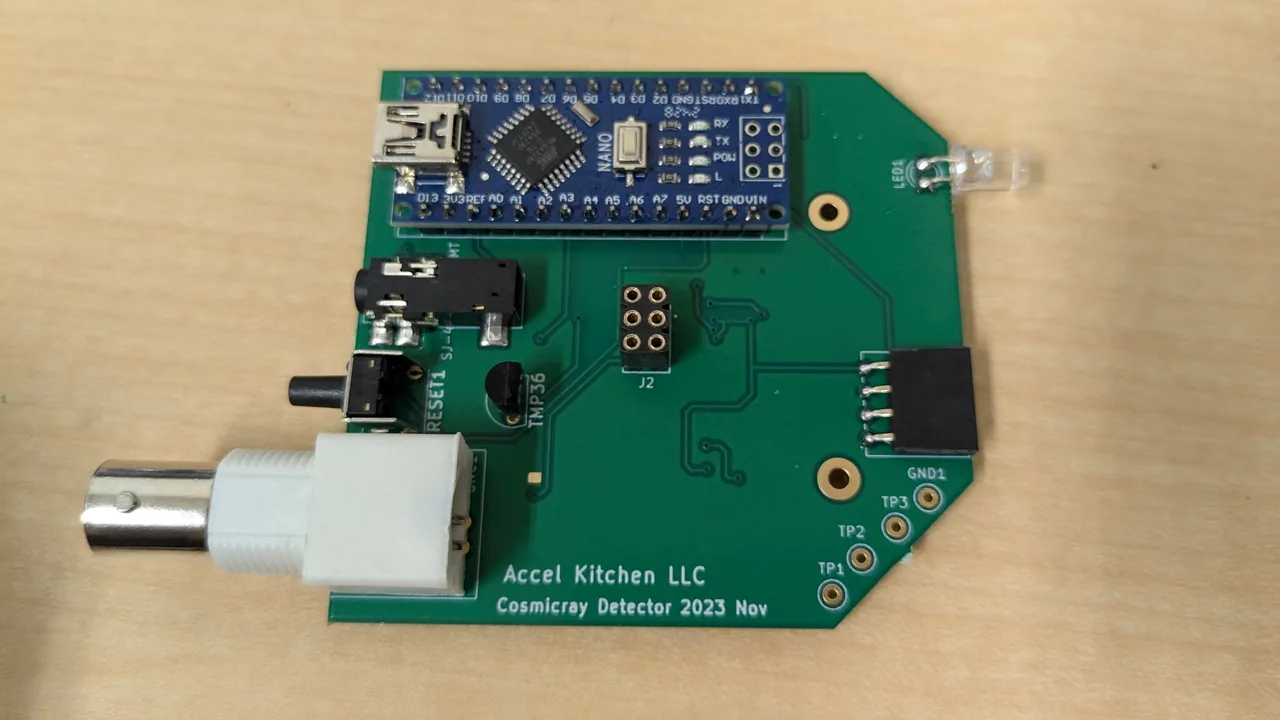
Solder it following the finished picture (the photo below).
 1
2
3
4
5
6
7
8
9
10
1
2
3
4
5
6
7
8
9
10
The finished main board.
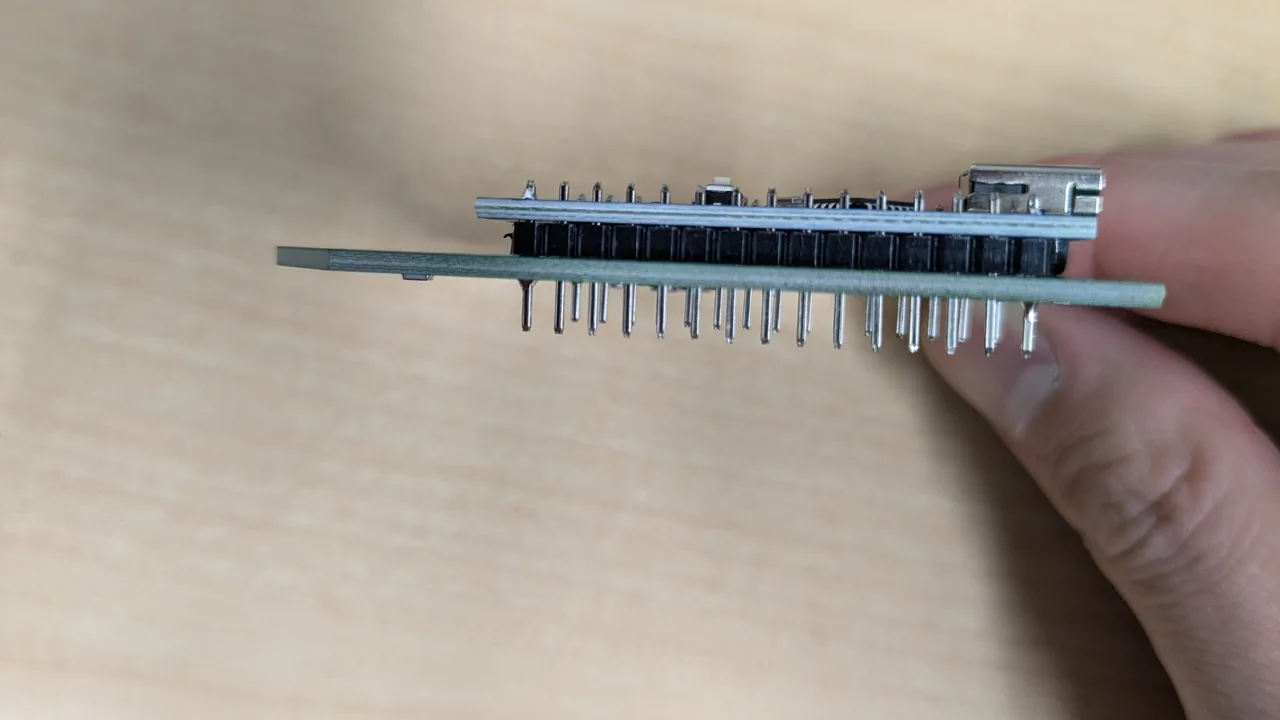
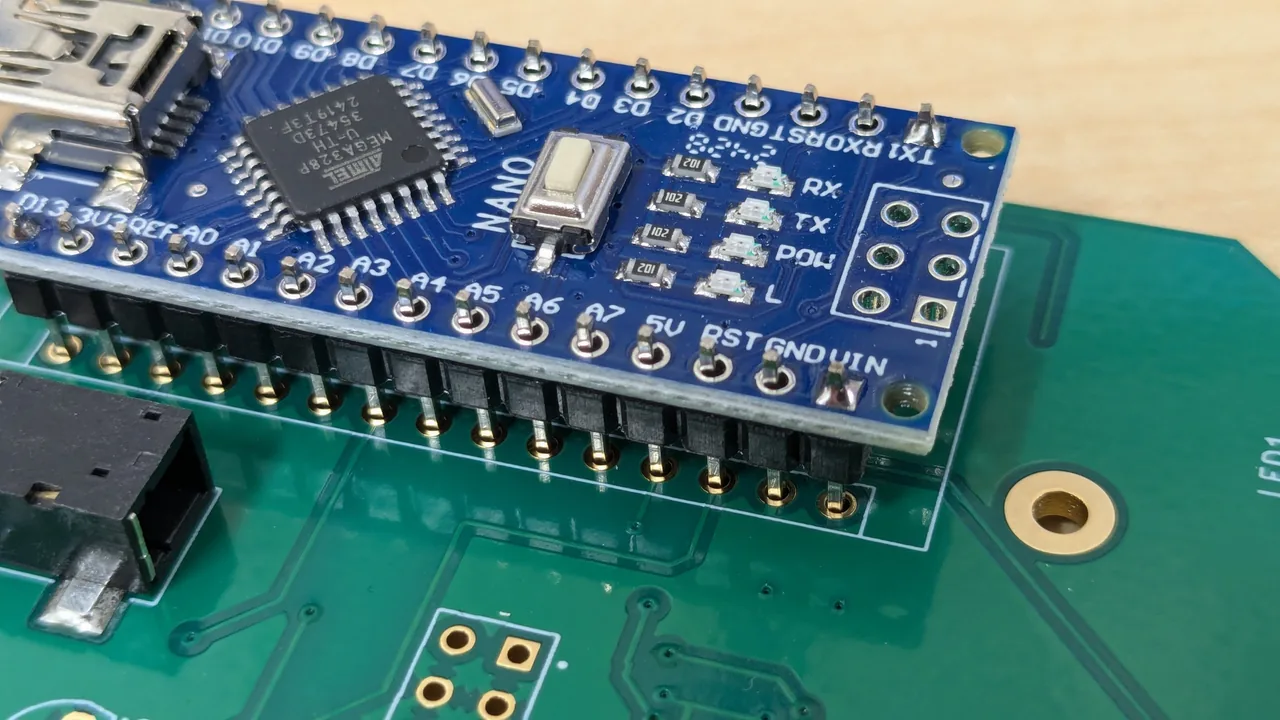
First, fit the Arduino so that it does not sit raised. Pins that are tilted may not go into the board, so with the Arduino plugged in, solder the 4 corners on the front and then the 4 corners on the back, checking one pin at a time that it is not tilted. Then solder the rest all together.
TP2 and the ground clip on GND, and look at the pulses. TP1 is the raw SiPM signal, TP2 is the amplified signal and TP3 is the peak-hold signal.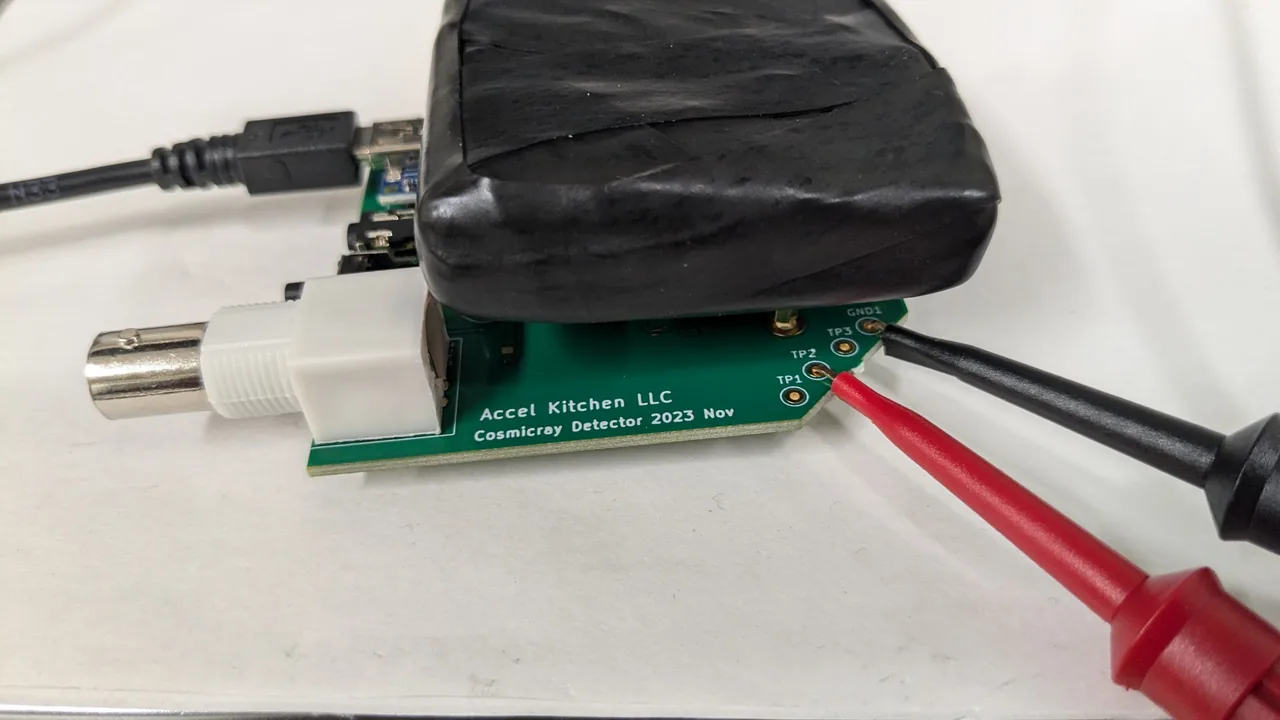
TP2 and the black clip on GND.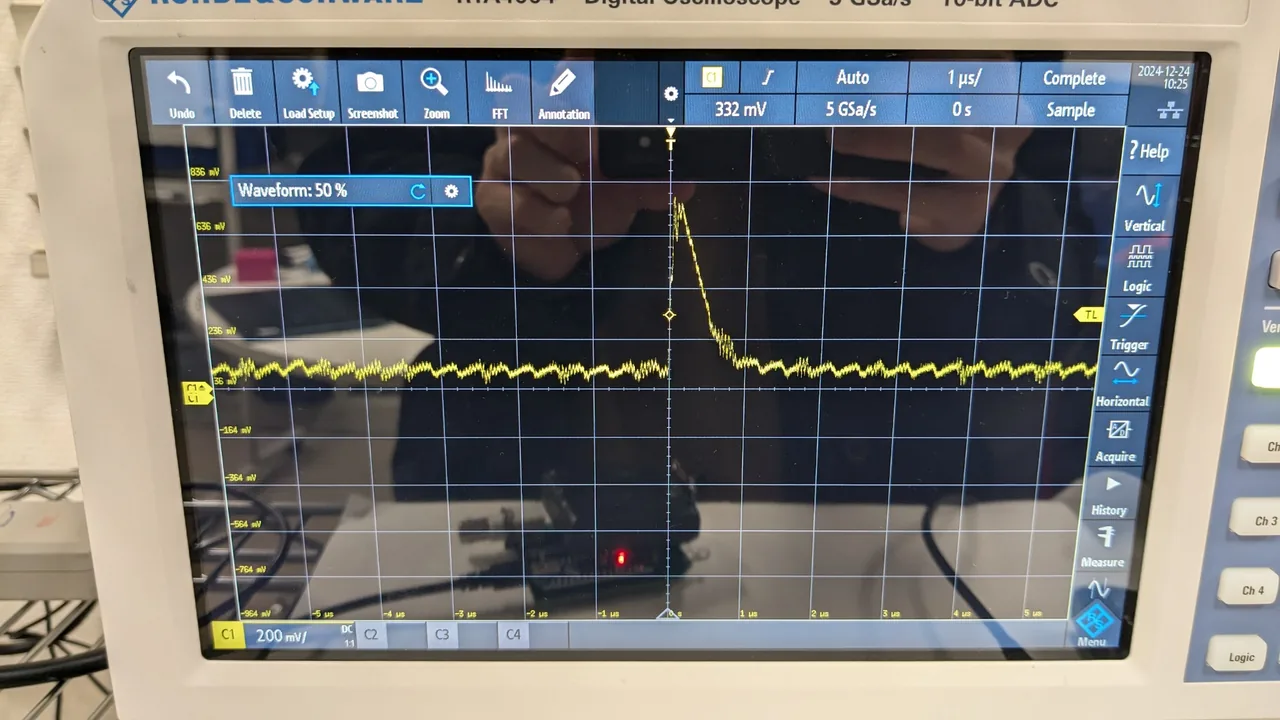
The v2 board is expected to arrive with many of the small surface-mount parts already fitted. Of the parts in the bill of materials (BOM), the following ones, which are not in the assembly BOM, are soldered by hand. The contents of a kit differ between editions, so check on the board you actually received which parts are already fitted.
| Designator | Part |
|---|---|
| U3 | The 15-pin sockets for the Arduino Nano ESP32 (2 of them) |
| OLED1 | The 4-pin socket for the OLED |
| RESET1 | The reset switch |
| J1, J2 | 2 × 3-pin (6-pin) headers. They join the SiPM board and the readout board (both are 6-pin, not 3-pin) |
| LED1 | A 3 mm LED (through-hole). It is not in either of the parts lists, so check whether it is in your kit |
Fit the sockets for the Nano ESP32 so that they do not sit raised. Pins that are tilted will not go in, so with the Nano ESP32 plugged in, solder the 4 corners one pin at a time and then solder the rest all together. Fit the OLED socket, the reset switch and the headers too, in the right orientation for the board.
The readout board (63 × 63 mm) is held up by three M2 × 17 mm spacers. The SiPM board (40 × 40 mm) is held up by 10 mm spacers. For the scintillator, use the one you wrapped in the steps above.
Join the SiPM board and the readout board with the USB cable unplugged, by pushing the 6-pin connectors (J1, J2) together, and fix them with M2 spacers and screws. Press the scintillator firmly against the SiPM and close every gap with light-shielding tape (if there is a gap, the count jumps up under fluorescent light).
Plug the Nano ESP32 into the sockets on the back of the board, and plug the OLED into its socket.
Connect it over USB and check that Cnt and Rate appear on the OLED. You can also open the measurement app and check that a waveform appears on the oscilloscope (Oscilloscope). Flash the firmware following the steps in "08 Firmware". You can do this check only if the firmware has already been written to the Nano ESP32. If nothing is displayed, flash it first.
The v2's case is printed on a 3D printer and is assembled with the lid taken off. Its outside dimensions are 86 × 75 × 61.4 mm, and the front has a window for the OLED, a hole for the reset switch and a hole for the LED. The side has an opening for the USB cable and a rectangular opening that covers the OUT and IN1 to IN3 jacks together.
| File | Purpose |
|---|---|
cosmic-ray-detector-v2-compact-base.stl | The body and the bottom plate (1 piece) |
cosmic-ray-detector-v2-compact-lid.stl | The lid, fixed with screws (1 piece) |
cosmic-ray-detector-v2-compact-lightpipe.stl | A part that carries the LED's light to the front. Optional; print it in a transparent material |
A good starting point for printing is a 0.4 mm nozzle, 0.2 mm layers, about 4 perimeters and 20–30 % infill. Print the body and the lid in the orientation of the STL. The rectangular jack opening is a 50 mm bridge, so add support along its upper edge. To get the STL data, write to info@accel-kitchen.com.
The dimensions of this case were checked against the boards and parts in the 3D model. A prototype has not yet been assembled in real life. If anything does not fit, please tell a mentor.
The scintillator model does not include the thickness of the wrapping. Check with the real, wrapped block that it fits. The lid screws go directly into the PLA (the pilot hole is 2.2 mm). The holes for the reset switch and the LED are 7.5 mm. You insert and remove the microSD card through the rectangular opening for the jacks.